Path of Exile 2 Best Settings for FPS: Maximum Performance Guide
Published
On this page
Path of Exile 2 is the fastest-growing game on Steam right now, and its endgame demands serious performance tuning. The good news: the biggest gains come from two settings — Lighting Mode and renderer choice — not from buying new hardware.
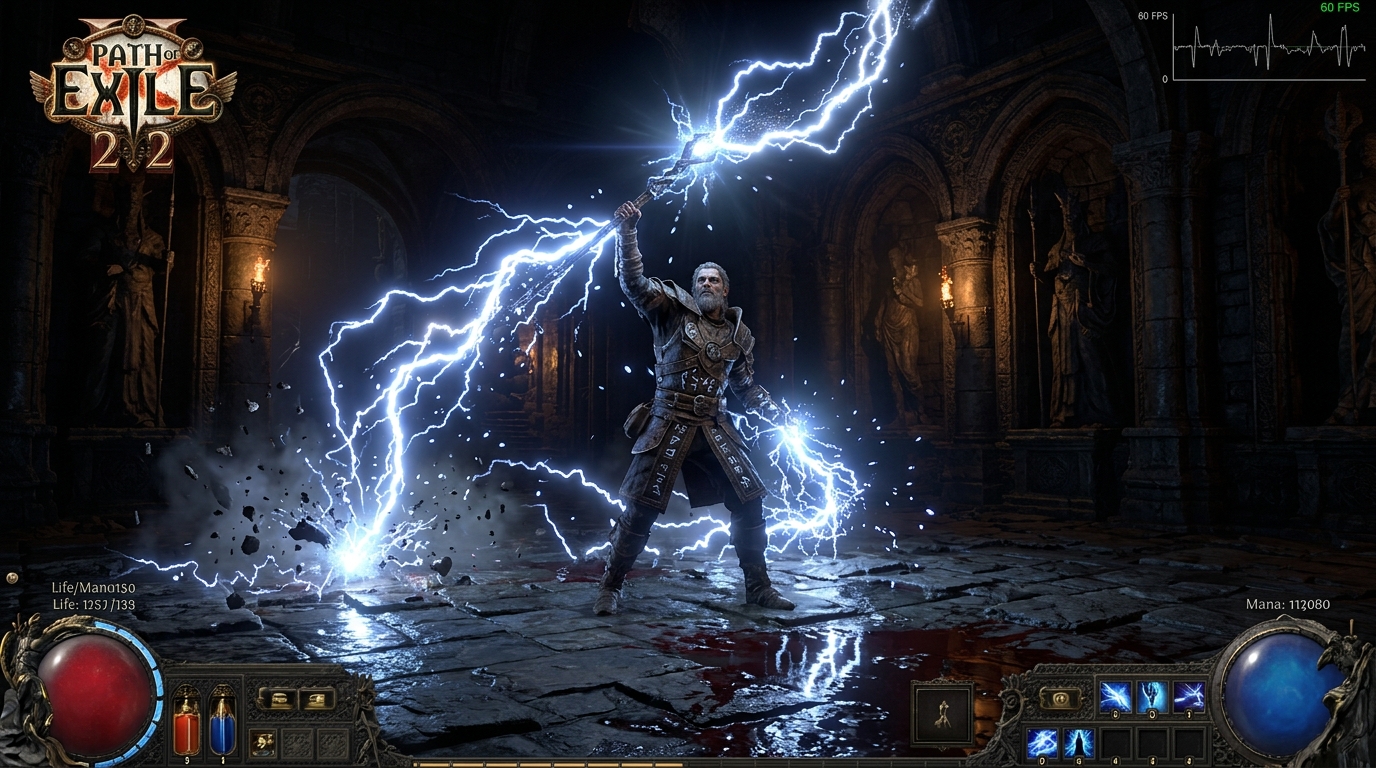
PoE2’s endgame builds push particle effects to the limit. With the right settings, mid-range hardware handles it comfortably.
Quick wins — change these first
- Lighting Mode → Shadows Only (biggest single FPS gain, ~17–32%)
- Dynamic Resolution → Off (prevents constant resolution-switch hitching)
- Renderer → DX12 (better multi-core CPU use on modern hardware)
- Particle Quality → Low (essential for endgame screen-clearing builds)
- Fullscreen Exclusive + V-Sync Off + frame cap
Display settings
| Setting | Value |
|---|---|
| Display Mode | Fullscreen (exclusive) |
| Resolution | Native (or DLSS/FSR render resolution) |
| Refresh Rate | Monitor max |
| V-Sync | Off |
| Frame Rate Cap | Refresh rate − 3, or uncapped if GPU has headroom |
| Dynamic Resolution | Off |
| DLSS / FSR | On (see below) |
Exclusive Fullscreen reduces input latency and gives PoE2 direct GPU access. V-Sync in PoE2 adds a full-frame buffer — disable it and use a frame cap instead.
The most impactful graphics settings
Lighting Mode — the biggest lever
| Mode | FPS impact |
|---|---|
| Shadows + GI (Global Illumination) | Baseline (most expensive) |
| Shadows Only | +17–32% FPS — use this |
| No Shadows | Additional gain, visible quality reduction |
Shadows Only is the correct setting for virtually all players. Global Illumination in PoE2’s dark dungeons and arenas adds very little visual uplift for the cost.
Full recommended settings table
| Setting | Recommended | Notes |
|---|---|---|
| Lighting Mode | Shadows Only | Biggest single FPS gain |
| Particle Quality | Low (endgame) / Medium (story) | Essential for dense builds |
| Particle Density | Low | Companion to Particle Quality |
| Ambient Occlusion | Off | High cost in dark environments |
| Shadow Quality | Medium | Low is fine if still GPU-bound |
| Shadow Distance | Medium | |
| Texture Quality | High (if VRAM allows) | Minimal FPS impact above 4GB VRAM |
| Anti-Aliasing | FXAA or Off | TAA blurs fast-moving projectiles |
| Reflection Quality | Low | |
| Post-Processing | Low | Bloom, lens flare: off |
| Dynamic Resolution | Off | Always — causes hitching if enabled |
| Renderer | DX12 | See renderer section |
Renderer selection
Options → Graphics → Renderer → DirectX 12, then restart PoE2.
On Ryzen 5000 / Intel 12th-gen and newer, DX12 adds 8–15 FPS in CPU-heavy endgame maps because it distributes simulation work across more CPU cores. On older CPUs (Ryzen 3000 or Intel 10th-gen and below), the gain is smaller and DX11 may be more stable. Vulkan is worth testing if DX12 produces hitching on your system.
DLSS, FSR, and upscaling
Upscaling is the most effective way to gain FPS without visual quality loss:
| Upscaling | GPU | Mode recommendation |
|---|---|---|
| DLSS | NVIDIA RTX | Quality at 1440p, Balanced at 1080p |
| FSR | All GPUs | Quality or Balanced |
| NIS | NVIDIA (driver-level) | Fallback if no in-game upscaling |
DLSS Quality at 1440p renders at ~960p internally and upscales — the GPU load drops to near-1080p levels while the output looks close to native 1440p. The FPS gain in PoE2’s endgame is typically 40–70%.
GPU driver settings
NVIDIA
- Low Latency Mode → Ultra (reduces render queue, particularly helpful for the inconsistent frame times in PoE2’s heavy moments).
- Power Management Mode → Prefer Maximum Performance.
- Shader Cache Size → 100 GB (critical — see the PoE2 Stuttering Fix for details).
AMD
- Anti-Lag → On.
- Radeon Super Resolution if PoE2 doesn’t expose FSR natively.
- Shader Cache → Unlimited.
Endgame-specific tuning
Endgame builds with league mechanics (Expedition, Ritual, Breach) generate dramatically more particle load than the base game. If FPS drops specifically during league mechanics:
- Particle Quality → Low if not already.
- Particle Density → Low.
- Lighting Mode → No Shadows (extreme, but some league mechanics genuinely warrant it).
- Consider running a less particle-dense build archetype — some skill gems are inherently heavier than others.
CPU and memory optimization
PoE2 is CPU-intensive in endgame. If GPU usage drops during FPS dips:
- Enable XMP / EXPO for your RAM — How to Enable XMP or EXPO for Gaming. PoE2’s simulation is memory-bandwidth-heavy.
- Enable DX12 for multi-core CPU use.
- High Performance power plan in Windows.
- Close browsers and heavy background apps before endgame sessions.
Timer resolution
Tier1Suite applies the optimal Windows timer resolution (0.5ms vs. the default 15.6ms), tightening frame delivery and reducing input latency in PoE2’s already-demanding frame delivery pipeline. Read The Ultimate Guide to Timer Resolution for Gaming for the background.
Quick-reference checklist
- Lighting Mode: Shadows Only
- Dynamic Resolution: Off
- Renderer: DX12 (test Vulkan if DX12 hitches)
- Particle Quality + Density: Low (endgame)
- Ambient Occlusion: Off
- DLSS/FSR: Quality or Balanced
- Fullscreen Exclusive, V-Sync Off, frame cap set
- Shader Cache: 100 GB in GPU driver panel
- XMP/EXPO: enabled
- Power Plan: High Performance
Related guides
- Path of Exile 2 Stuttering Fix
- How to Enable XMP or EXPO for Gaming
- DLSS vs FSR vs XeSS for Gaming
- How to Check for a CPU or GPU Bottleneck
- The Ultimate Guide to Timer Resolution for Gaming
Switch Lighting Mode to Shadows Only, disable Dynamic Resolution, enable DX12, drop Particle Quality to Low for endgame, and add DLSS or FSR. Those changes alone are worth 35–70 FPS on mid-range hardware — without touching a single piece of equipment.
Frequently asked questions
What is the single most impactful setting for FPS in Path of Exile 2?
Lighting Mode. The difference between Shadows + GI and Shadows Only delivers approximately 17–32% more FPS depending on the scene. It is the largest FPS delta of any single setting in PoE2. Set it to Shadows Only first, then work down the list from there.
Should I use DLSS or FSR in Path of Exile 2?
Yes, if your GPU supports it. DLSS Quality on an RTX card delivers significantly more FPS than native rendering with very sharp output. FSR works on all GPUs and is a strong choice for AMD and older NVIDIA cards. DLSS Quality at 1440p performs like native 1080p GPU load with 1440p visual quality — a straightforward win.
What renderer should I use in Path of Exile 2 for the best FPS?
DX12 is generally the best choice on modern CPUs (Ryzen 5000+ or Intel 12th-gen and newer) because it utilizes multiple CPU cores more efficiently, adding 8–15 FPS in endgame CPU-heavy scenarios. On older CPUs or if DX12 causes driver-level stutter, Vulkan is a strong alternative. DX11 is the most stable fallback.
What settings should I use for endgame builds with massive particle effects?
Lower Particle Quality to Low and ensure Particle Density is reduced. These are the most important settings for endgame league-starting builds that flood the screen with projectiles. Shadow Quality Medium and Lighting Mode Shadows Only are the other key reductions. At this point the game's visual limitations are entirely from your build's particle generation, not GPU capability.
Does Path of Exile 2 use the CPU or GPU more?
Both, but endgame builds become CPU-bound rapidly. Dense screens of projectiles and enemies require significant CPU simulation work. If your GPU usage drops below 85% during FPS drops, you are CPU-bound. Enable DX12 for multi-core utilization, enable XMP/EXPO for your RAM (memory bandwidth matters for CPU-heavy workloads), and consider lowering thread-heavy settings like simulation quality.