CS2 Stuttering Fix: Stop FPS Drops and Frame Spikes in Counter-Strike 2
Published
On this page
Counter-Strike 2’s Source 2 engine is heavier than CS:GO, and a lot of players see stutter and FPS drops that CS:GO never had — usually from shaders, power throttling, drivers, or background apps. This guide walks through the fixes that smooth out frame times and keep your spray consistent.
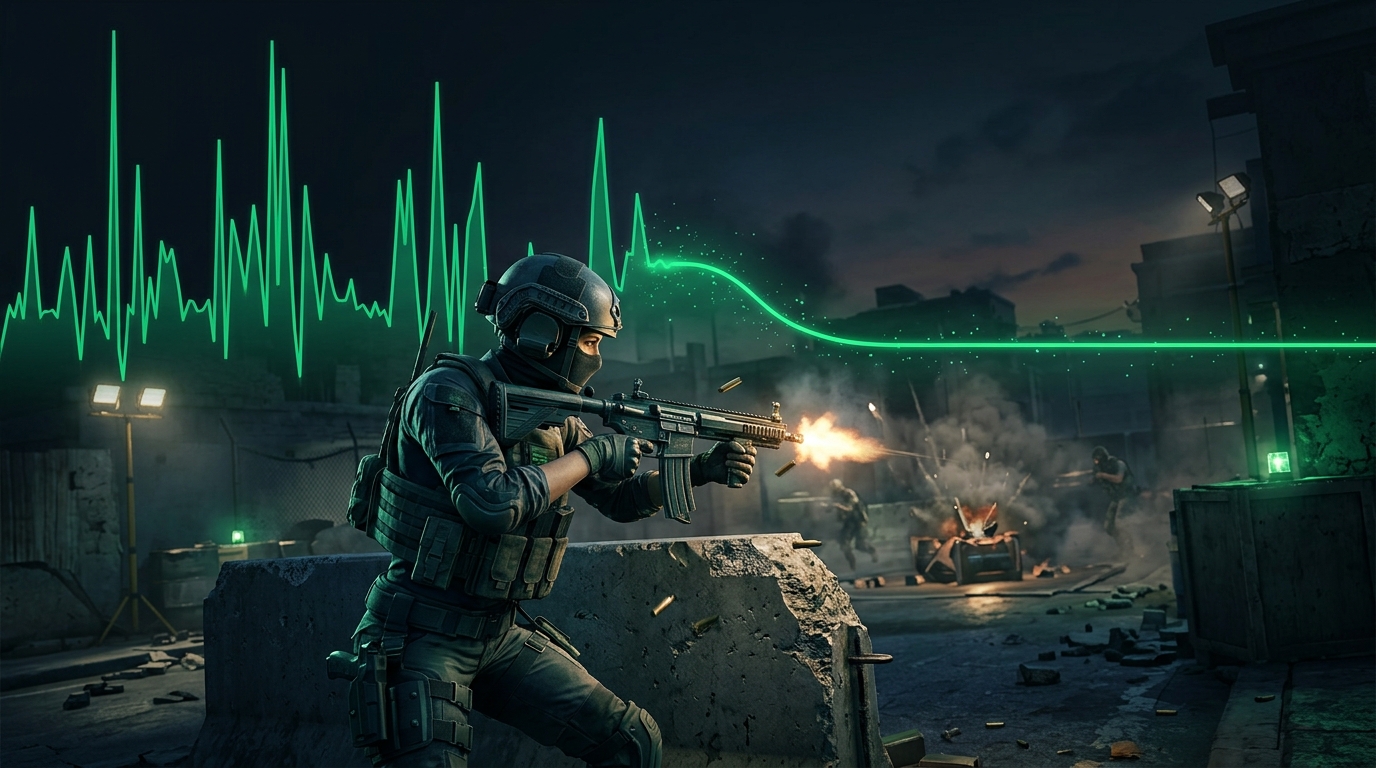
If your FPS counter looks fine but the game still hitches, you’re fighting frame-time spikes, not low FPS.
What CS2 stutter usually looks like
- hitching on the first round as the map loads in
- micro-stutters while strafing or spraying
- FPS that drops in smokes, utility, and busy mid fights
- inconsistent feel even at a high FPS number
Change these first
- Set Display Mode to Fullscreen (not borderless).
- Turn V-Sync Off and keep NVIDIA Reflex Enabled + Boost.
- Set Windows power plan to High Performance.
- Add launch options to preload assets and lift the cap:
-high +fps_max 0 +cl_forcepreload 1
+cl_forcepreload 1 is one of the most effective CS2 anti-hitch options because it preloads assets instead of streaming them mid-round.
Update or clean-install your GPU driver
- Install the latest stable GPU driver.
- If stutter started after a driver update, roll back to the previous stable version.
- Reset driver settings to default before layering tweaks.
- Disable extra overlays and recording while testing.
Stop CPU power throttling
CS2 micro-stutter is very often power management, especially on laptops:
- Control Panel → Power Options → High Performance.
- On laptops, plug in and disable battery-saver modes.
- Set GPU Power Management Mode to Prefer Maximum Performance.
Lower the shader-heavy settings
Source 2 shaders can cause spikes on mid-range GPUs:
- Shader Detail: Low
- Particle Detail: Low
- Ambient Occlusion: Off
- Texture Detail: Low if VRAM is limited
See the full pass in Best CS2 Settings for FPS and Low Input Delay.
Background apps and storage
- Close browsers, launchers, and hardware monitors you don’t need.
- Disable Steam/Discord overlays.
- Install CS2 on an SSD if it’s on a hard drive.
- Reboot before long sessions if your PC has been on for hours.
Windows tweaks worth trying
- Enable Game Mode.
- Disable unnecessary startup apps.
- On laptops, confirm CS2 uses the correct discrete GPU.
- Consider disabling VBS for extra CPU headroom.
For smoother input and frame consistency, read The Ultimate Guide to Timer Resolution for Gaming (and grab Tier1Suite) and How to Minimize Input Delay for Competitive Gaming.
When to use a frame cap
If FPS swings wildly between quiet and busy moments, a stable fps_max cap can reduce frame-time spikes. Try capping near your refresh (e.g. +fps_max 240 on a 240 Hz monitor) and compare it to uncapped — keep whichever feels steadier in real rounds.
Related guides
- Best CS2 Settings for FPS and Low Input Delay
- CS2 Stretched Resolution Guide
- How to Minimize Input Delay for Competitive Gaming
- The Ultimate Guide to Timer Resolution for Gaming + Tier1Suite
Most CS2 stutter comes from power throttling, drivers, or shader streaming. Force fullscreen, preload assets, fix your power plan, and clean up drivers — that clears the hitching for the large majority of players.
Frequently asked questions
Why does CS2 stutter when CS:GO never did?
Counter-Strike 2 runs on the Source 2 engine, which is significantly heavier than CS:GO's engine and streams assets differently. Shader compilation, VRAM demand, and CPU power management all affect CS2 in ways CS:GO never exposed. Forcing fullscreen, preloading assets with +cl_forcepreload 1, and setting the High Performance power plan closes most of the gap.
How do I fix CS2 micro-stutter during sprays and strafes?
Micro-stutter during movement is almost always CPU power throttling, especially on laptops. Set Windows to the High Performance power plan, plug in if on a laptop, and set GPU Power Management Mode to Prefer Maximum Performance. If it persists, lower Shader Detail and Particle Detail to reduce per-frame CPU work.
Does CS2 stutter on a good PC?
Yes, CS2 can stutter on strong hardware because the issue is frame-time consistency rather than raw FPS. Source 2 shader streaming, background overlays, and a borderless-window display mode all cause hitching regardless of GPU tier. Force exclusive fullscreen, add +cl_forcepreload 1 as a launch option, and disable overlays to smooth it out.
Will more RAM fix CS2 stuttering?
RAM helps indirectly if Windows is paging to disk while CS2 runs, but the bigger gain comes from storage speed and driver health. Install CS2 on an SSD, close RAM-heavy background apps before queuing, and make sure XMP is enabled so your RAM runs at its rated speed.
Is CS2 stuttering a driver problem?
Drivers are a common cause, especially when stutter appears after an update. If hitching started after a driver change, roll back to the previous stable version and test before adding other fixes. Reset driver settings to default and disable recording overlays while troubleshooting so driver conflicts do not compound each other.