Rocket League Stretched Resolution Guide for FPS & Wider View
Published
On this page
Rocket League players run stretched res for a wider, more zoomed-in view of the field and a steadier frame rate that keeps fast aerials and dribbles smooth. But selecting a 4:3 resolution on its own usually leaves black bars unless you force your GPU to scale across the full panel. This guide shows you how to get clean stretched resolution in Rocket League on NVIDIA and AMD.
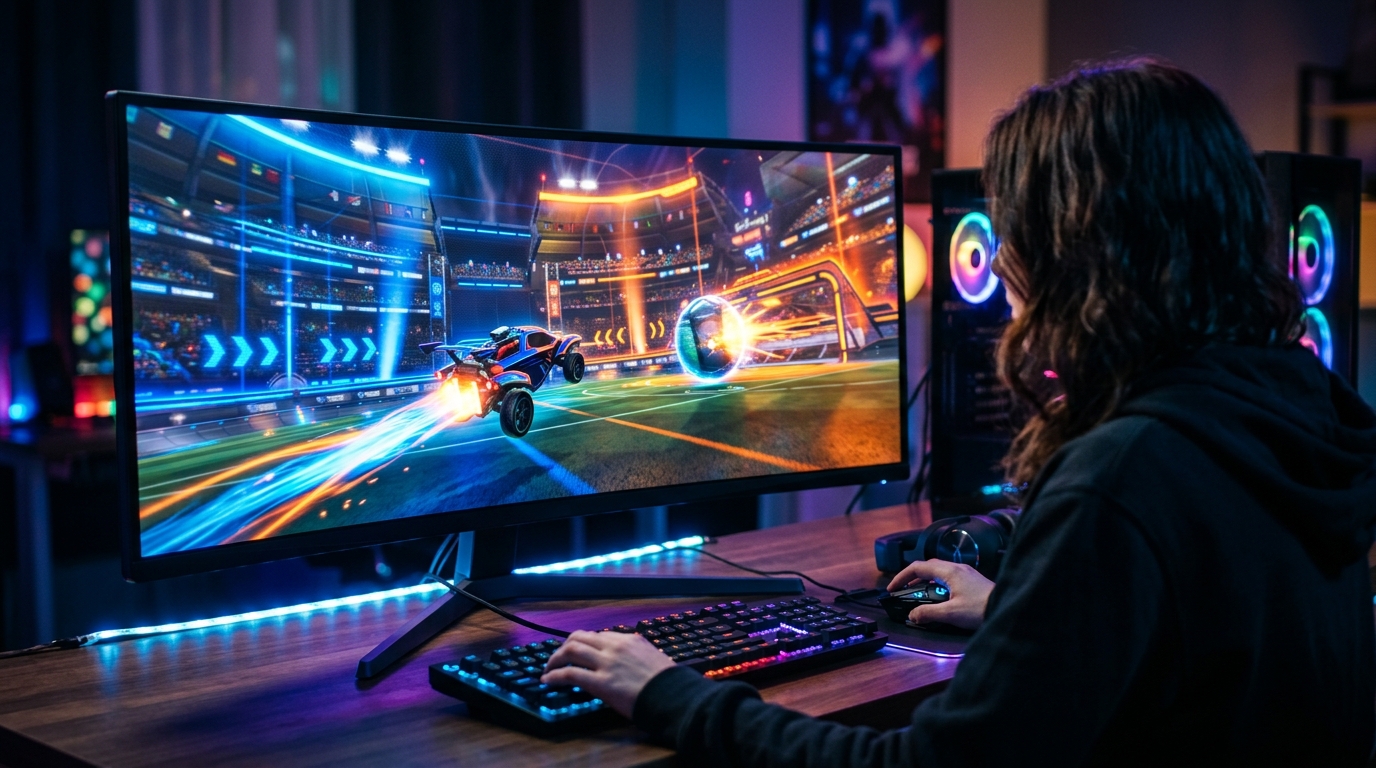
Stretched is a preference — a wider field and a more zoomed feel. Test it against native 16:9 and keep whatever makes your touches more consistent.
Why a 4:3 pick can show black bars
When you select a 4:3 resolution, your system has to fit that narrower image onto a 16:9 panel. By default it pillarboxes — centers the image and pads the sides with black bars — rather than stretching it. The component that stretches the image to fill the whole panel is your GPU, not the game. So the real fix lives in your graphics driver, not the Rocket League menu.
Recommended Rocket League stretched resolutions
| Resolution | Aspect | Feel |
|---|---|---|
| 1280 x 960 | 4:3 | Classic stretched, widest field view |
| 1440 x 1080 | 4:3 | Sharper 4:3, still wide |
| 1728 x 1080 | widescreen (lower) | Mild stretch, fewer pixels for FPS |
1280 x 960 is the most common 4:3 pick for the wide, zoomed look. If full 4:3 feels too distorted for reading the ball, drop to a lower widescreen resolution like 1728 x 1080 for the frame gain with less stretch.
Step 1 – Force full-panel GPU scaling
NVIDIA
- Open NVIDIA Control Panel → Adjust desktop size and position.
- Scaling mode: Full-screen.
- Perform scaling on: GPU.
- Tick Override the scaling mode set by games and programs and Apply.
AMD
- Open AMD Software → Settings → Display.
- Set GPU Scaling: On.
- Set Scaling Mode: Full Panel.
If your 4:3 resolution isn’t listed, create it first via Create Custom Resolution (NVIDIA) or Custom Resolutions (AMD). For a monitor-level method, see How To Get Custom Resolution / Stretch Res.
Step 2 – Set the resolution in Rocket League
- Launch Rocket League → Settings → Video.
- Set Display to Fullscreen — stretched will not work in Windowed or Borderless.
- Set the Resolution to your chosen value, such as
1280 x 960. - Apply the changes.
If Display is left on Windowed or Borderless, the GPU scaling override won’t take effect and you’ll keep the black bars. After picking the resolution, confirm your Camera profile still feels right, since the wider output can subtly change how distances read.
Stretched res vs. your camera settings
Stretched resolution and Rocket League’s Camera settings do two different jobs. The resolution controls how the rendered image is scaled onto your panel, giving the wider, zoomed appearance. Your Camera FOV, distance, height, angle, and stiffness control where the camera actually sits relative to your car. They stack — many players run a high-FOV camera and a 4:3 stretched output together — so dial in your camera first, then layer stretched res on top and judge the combined feel.
Still seeing black bars?
This is the #1 stretched-res complaint, and it’s almost always the scaling step:
- Display is Windowed or Borderless — it must be Fullscreen.
- NVIDIA scaling is set to Aspect ratio instead of Full-screen, or “Override the scaling mode set by games” is unticked.
- AMD GPU Scaling is off, or Scaling Mode isn’t Full Panel.
- Your monitor’s own scaling (OSD) is overriding the GPU — set the monitor’s aspect/scaling option to Full.
- A driver update reset your scaling — re-check these settings after every GPU driver update.
Related guides
- How To Get Custom Resolution / Stretch Res for Fortnite, Apex Legends, Halo, and any other game
- Best 4:3 Stretched Resolutions for Competitive FPS
- Does Stretched Resolution Increase FPS?
- Stretched Resolution vs Native Resolution
- How To Fix Black Bars With Stretched Resolution
Rocket League won’t stretch a 4:3 resolution on its own, but forcing full-panel GPU scaling delivers the wide, zoomed field view and helps lock in a steady frame rate. Set NVIDIA or AMD scaling to full, pick 1280 x 960 in Fullscreen, and the black bars are gone.
Frequently asked questions
How do I get stretched resolution in Rocket League?
Force full-panel scaling at the GPU driver first: set NVIDIA scaling to Full-screen with Perform scaling on GPU and tick Override the scaling mode set by games, or set GPU Scaling On with Scaling Mode Full Panel in AMD Software. Then open Rocket League, go to Settings and Video, set Display to Fullscreen, and choose a 4:3 resolution such as 1280x960 or 1440x1080. The GPU scaling step is what stretches the image to fill your panel.
What resolution should I use for stretched Rocket League?
1280x960 is the most common 4:3 pick and gives the widest, most zoomed-in feel on the field. 1440x1080 is also 4:3 but renders sharper while keeping the wide look. Because Rocket League cares about frame consistency, a lower resolution also helps hit and hold a high, stable frame rate. Try both and keep whatever makes your car control and aerials feel best.
Does stretched resolution change the camera or FOV in Rocket League?
It changes how the image is presented, not your in-game FOV slider. A 4:3 stretched output makes objects and cars appear horizontally wider and slightly larger, which some players prefer for reading the ball and opponents. Your actual Camera settings — FOV, distance, height, and angle — remain separate and are still worth tuning. Treat stretched res as a visual preference layered on top of your camera profile.
Is stretched resolution bannable in Rocket League?
No. Stretched resolution is a GPU display-scaling feature, not a modification of the game. You are not editing game files or injecting anything into Rocket League, just telling your driver how to scale the output to fill the panel. Choosing a resolution and using your driver's scaling options is normal PC behavior and is not flagged.
Why does Rocket League show black bars when I pick a 4:3 resolution?
By default your GPU centers the narrower 4:3 image inside your 16:9 panel and pads the sides with black bars instead of stretching it. To fill the whole panel you must tell the GPU to perform full-panel scaling. That override is what removes the bars and stretches the image across the screen.