Minecraft Stretched Resolution Guide for PvP (Bedwars, Hypixel)
Published
On this page
Minecraft Java is hugely popular for stretched-res PvP — Bedwars and Hypixel players love the wide, zoomed-in look that makes clicking on opponents feel easier in close fights. The catch is that Minecraft Java has no in-game resolution picker like a normal shooter, so you can’t just select 4:3 in a menu. Instead you set your desktop to a 4:3 resolution, force full-panel GPU scaling, and run Minecraft in Fullscreen. This guide walks through that desktop-resolution method step by step.
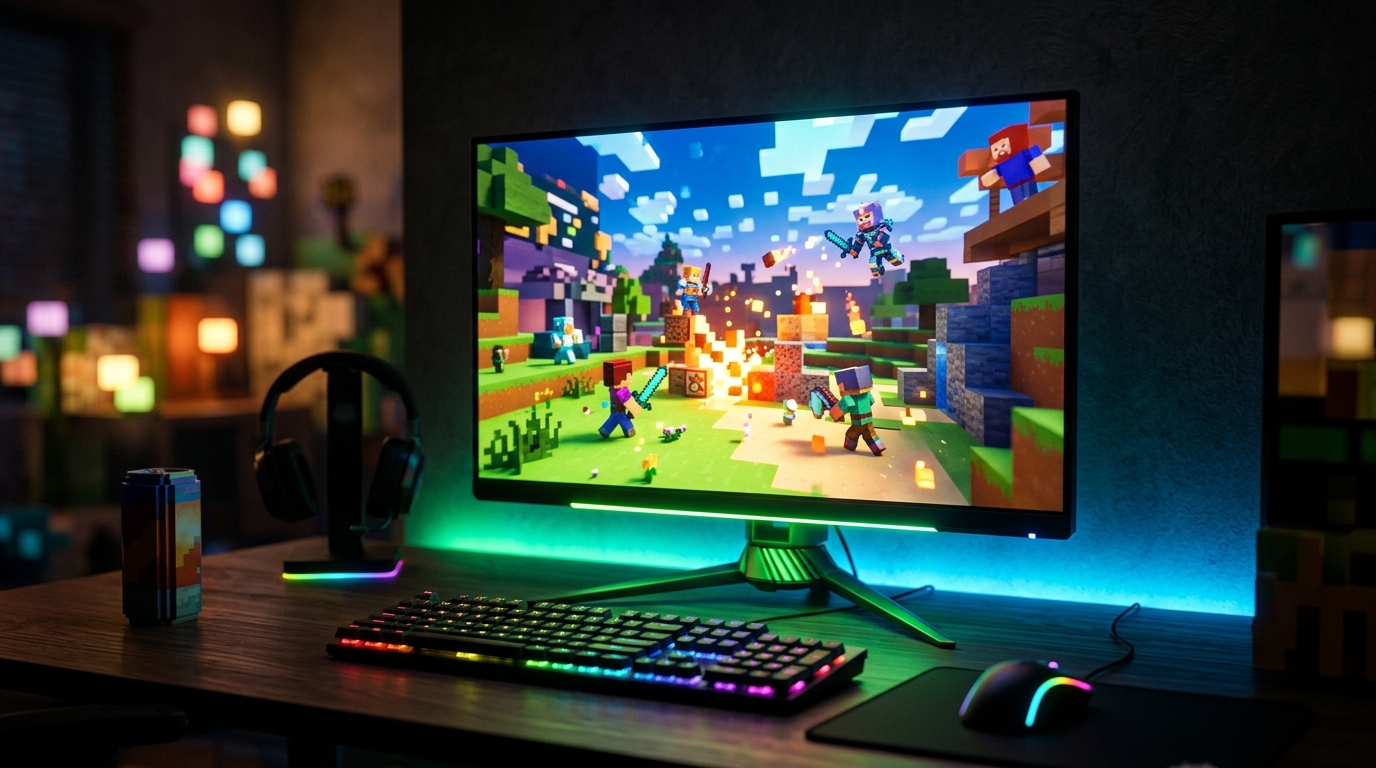
Stretched is a preference — wider hitboxes and a zoomed PvP feel. Test it against native 16:9 and keep whatever makes your clicks more consistent.
Why Minecraft is different: no in-game resolution picker
Most competitive games let you choose a resolution in their Video menu. Minecraft Java doesn’t — it simply renders at the size of its window, and in Fullscreen that means the resolution your whole desktop is currently set to. So the stretched-res trick is to change the desktop itself to a 4:3 resolution, then put Minecraft into Fullscreen so it adopts that 4:3 canvas. There’s no in-game shortcut; the desktop method is how stretched Minecraft works.
Recommended Minecraft stretched resolutions
| Resolution | Aspect | Feel |
|---|---|---|
| 1280 x 960 | 4:3 | Classic Bedwars/Hypixel stretch, widest feel |
| 1440 x 1080 | 4:3 | Sharper 4:3, still wide |
| 1024 x 768 | 4:3 | Aggressive stretch, lightest load |
1280 x 960 is the go-to for Hypixel Bedwars PvP. Minecraft is mostly CPU-bound, so the main payoff is the wider zoomed look rather than huge FPS gains — but lower resolutions can still help frames on weaker GPUs.
Step 1 – Force full-panel GPU scaling
NVIDIA
- Open NVIDIA Control Panel → Adjust desktop size and position.
- Scaling mode: Full-screen.
- Perform scaling on: GPU.
- Tick Override the scaling mode set by games and programs and Apply.
AMD
- Open AMD Software → Settings → Display.
- Set GPU Scaling: On.
- Set Scaling Mode: Full Panel.
This is the step that actually stretches the image. Without it, a 4:3 desktop resolution will just be pillarboxed with black bars.
Step 2 – Set a 4:3 desktop resolution
Because Minecraft follows your desktop, you change the resolution in Windows:
- Right-click the desktop → Display settings.
- Under Display resolution, pick a 4:3 value like
1280 x 960. - If 1280 x 960 isn’t listed, create it first as a custom resolution: use Create Custom Resolution in the NVIDIA Control Panel or Custom Resolutions in AMD Software, then it will appear in the Windows list. For a monitor-level method, see How To Get Custom Resolution / Stretch Res.
- Apply — your whole desktop will now look stretched, which is expected.
Step 3 – Run Minecraft Fullscreen
- Launch Minecraft Java.
- Press F11 (or set Fullscreen: ON in Options → Video Settings) so the game fills the 4:3 desktop resolution.
- Combined with the GPU scaling from Step 1, the image now stretches edge to edge with no black bars.
When you finish playing, set the desktop resolution back to native in Display settings so the rest of Windows looks normal again. Many players keep a saved custom resolution so they can switch back and forth quickly.
Still seeing black bars?
This is the #1 stretched-res complaint, and it’s almost always the scaling step:
- Minecraft is windowed, not Fullscreen — press F11 or enable Fullscreen in Video Settings.
- NVIDIA scaling is set to Aspect ratio instead of Full-screen, or “Override the scaling mode set by games” is unticked.
- AMD GPU Scaling is off, or Scaling Mode isn’t Full Panel.
- The desktop is still at native resolution — the 4:3 value must be applied in Windows Display settings, since Minecraft has no resolution picker of its own.
- Your monitor’s own scaling (OSD) is overriding the GPU — set the monitor’s aspect/scaling option to Full.
Related guides
- How To Get Custom Resolution / Stretch Res for Fortnite, Apex Legends, Halo, and any other game
- How Stretched Resolution Makes Aim Easier
- How To Fix Black Bars With Stretched Resolution
- Roblox Stretched Resolution Guide
- Is Stretched Resolution Bannable?
Minecraft Java’s lack of an in-game resolution picker throws people off, but the fix is simple once you know it: set the desktop to a 4:3 resolution, force full-panel GPU scaling, and run Minecraft in Fullscreen with F11. Do that and you’ll get the wide, zoomed PvP look that Bedwars and Hypixel players chase — then just switch the desktop back to native when you’re done.
Frequently asked questions
How do I get stretched resolution in Minecraft?
Minecraft Java has no in-game resolution picker, so you change your DESKTOP resolution to a 4:3 value like 1280x960 (creating it as a custom resolution if needed), force full-panel GPU scaling in your NVIDIA or AMD driver, and then run Minecraft in Fullscreen with F11. Minecraft fills whatever resolution the desktop is set to, and the GPU scaling step stretches that 4:3 image across your 16:9 panel. When you're done, switch the desktop back to native.
Why doesn't Minecraft have a resolution setting?
Minecraft Java draws its window at the size of your desktop or window rather than offering its own resolution dropdown like most shooters. That's why the stretched-res method is different here — instead of picking a resolution inside the game, you set the whole desktop to a 4:3 resolution and then put Minecraft into Fullscreen so it adopts that resolution. There is no in-game alternative, so the desktop method is the standard approach.
What resolution is best for stretched Minecraft PvP?
1280x960 is the most popular 4:3 desktop resolution for Bedwars and Hypixel PvP — it gives the wide, zoomed-in look players want for clicking on opponents in close fights. 1440x1080 is also 4:3 but a bit sharper. Because Minecraft is CPU-bound rather than GPU-bound, the bigger draw of stretched res here is the wider hitbox feel, though lower resolutions can still help FPS on weaker GPUs.
Is stretched resolution bannable on Hypixel?
No. Changing your desktop resolution and using your GPU driver's scaling options is a display setting, not a game modification or a mod — you are not editing Minecraft files or injecting anything. Hypixel and other anti-cheats do not flag the resolution or aspect ratio you play at. It's the same legitimate display behavior used in CS2, Fortnite, and other competitive titles.
Why does Minecraft show black bars at a 4:3 resolution?
If you set a 4:3 desktop resolution but your GPU is set to scale by aspect ratio, it centers the image and adds black bars on the sides instead of stretching it. To fill the whole panel you must set NVIDIA scaling to Full-screen on GPU or AMD GPU Scaling to Full Panel, and run Minecraft in Fullscreen with F11. That override is what removes the bars and stretches the image.