Marvel Rivals Best Visibility Settings for Competitive Play
Published
On this page
Marvel Rivals fights are loud — abilities, particles, destruction, and bright hero effects all stack at once. These visibility settings strip away the clutter that hides enemy movement so you can spot and track heroes faster without giving up more FPS than you need to.
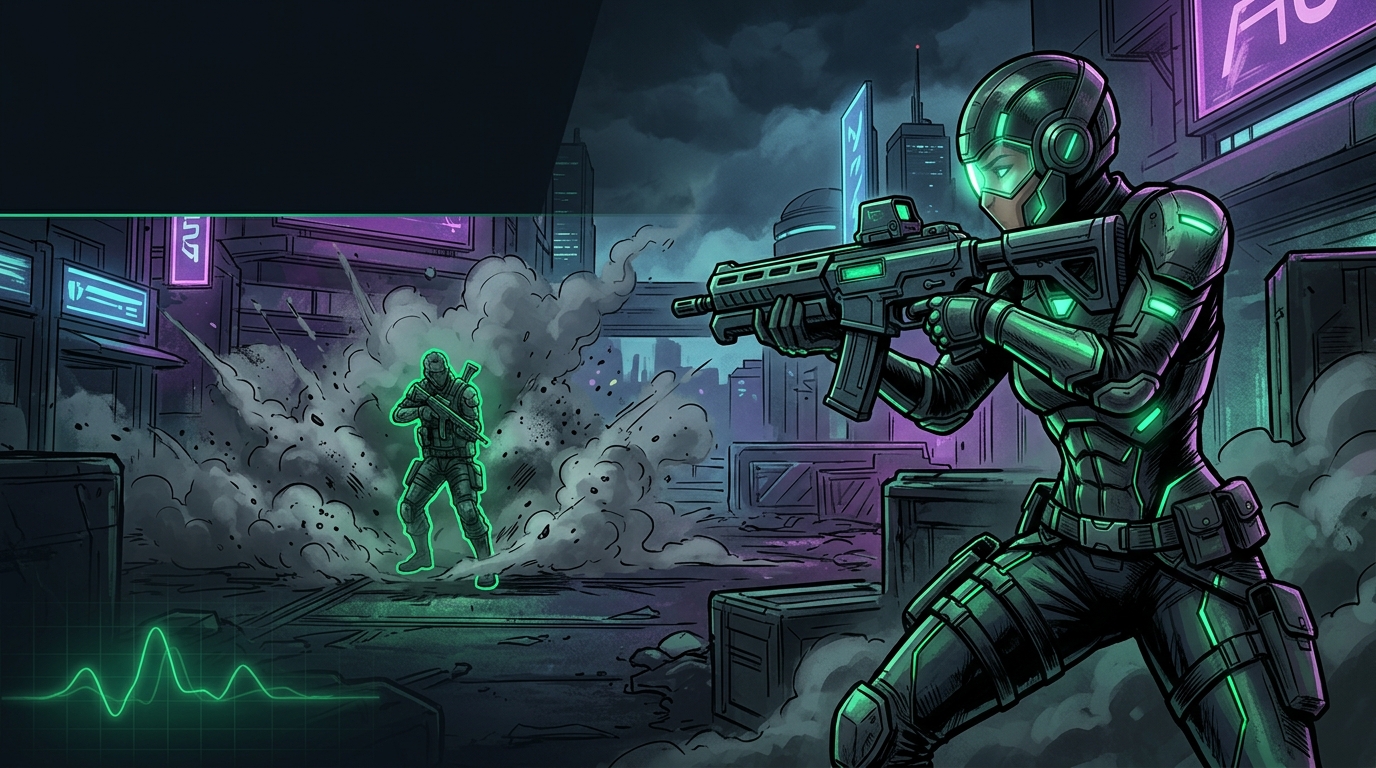
A cleaner screen wins more fights than a prettier one once a 6v6 turns into chaos.
Best Marvel Rivals visibility settings
| Setting | Recommended value |
|---|---|
| Motion Blur | Off |
| Depth of Field | Off |
| Chromatic Aberration | Off if available |
| Post Processing | Low |
| Effects Quality | Low |
| Shadow Detail | Low |
| Global Illumination | Low |
| Reflection Quality | Low |
| Upscaling | DLSS/FSR Quality |
If a label changes after an update, keep the logic: remove blur and heavy effects, and keep the image stable enough to track fast heroes cleanly.
Why visibility matters so much in Marvel Rivals
With six players per team plus ultimates, summons, and destructible terrain, the screen fills with effects that can completely hide an enemy mid-fight. Even at high FPS, you lose duels you should win simply because you couldn’t see the threat in time. Competitive visibility is about faster reads, not prettier graphics.
Turn off the settings that blur the image
The easiest wins:
- Motion Blur off
- Depth of Field off
- Chromatic Aberration off if available
- Film Grain off if available
None of these help you aim, and all of them make fast movement harder to track.
Lower the effect-heavy settings
- keep Effects Quality low
- keep Post Processing low
- keep Shadow Detail low
- keep Global Illumination and Reflections low
This cuts on-screen clutter and protects your FPS in the exact heavy-fight moments where readability matters most.
Keep heroes readable
Don’t crush everything to the floor — set Model Detail to Medium so hero silhouettes and team colors stay distinct. Readability is a balance: low enough to kill clutter, high enough that characters still pop against busy backgrounds.
Upscaling and clarity
Upscaling helps FPS but can soften the image if pushed too far.
- keep DLSS/FSR Quality for a clean balance
- avoid aggressive Performance modes unless your hardware is struggling
For the full breakdown, see Marvel Rivals DLSS, FSR, and Frame Generation Best Settings.
Visibility works best with stable performance
Even perfect visibility settings feel bad if your frame rate spikes. Pair this page with:
- Best Marvel Rivals Settings for FPS and Performance
- Marvel Rivals Stuttering Fix
- Marvel Rivals Best Audio Settings
Related guides
- Best Marvel Rivals Settings for FPS and Performance
- Marvel Rivals Stuttering Fix
- How to Optimize Your Monitor for Gaming
The best Marvel Rivals visibility settings remove blur and heavy effects without hiding the heroes you’re trying to track. Kill the blur, keep effects and shadows low, hold Model Detail at Medium, and use only as much upscaling as you actually need.
Frequently asked questions
What visibility settings matter most in Marvel Rivals?
Turn off Motion Blur, Depth of Field, Chromatic Aberration, and Film Grain. Lower Post Processing, Effects Quality, Shadow Detail, Global Illumination, and Reflections. Keep Model Detail on Medium so heroes remain readable.
Why does visibility matter more than graphics in Marvel Rivals?
With six players per side plus ultimates and effects, the screen fills with clutter. A cleaner, readable screen lets you spot threats faster and win duels you should win. Competitive games reward clarity over eye candy.
How do I stop Motion Blur and Depth of Field from degrading visibility?
Turn both off completely. Neither helps you aim, and both make fast hero movement harder to track. These are the easiest, highest-value visibility improvements.
Should I lower Model Detail to improve visibility?
No. Keep Model Detail on Medium so hero silhouettes and team colors stay distinct. Readability is a balance—low enough to kill visual clutter, but high enough that characters still pop against backgrounds.
How aggressively should I use upscaling in Marvel Rivals?
Use DLSS/FSR Quality for a clean balance. Avoid Performance modes unless hardware is struggling. Aggressive upscaling softens the image and hurts readability, defeating the purpose of visibility settings.