Best Rainbow Six Siege Settings for FPS and Visibility
Published
On this page
Rainbow Six Siege is a precision peeker’s game where a high, stable frame rate decides who wins the first shot. These settings give you the most FPS and the clearest reads through gadgets and smoke without blurring enemy outlines.
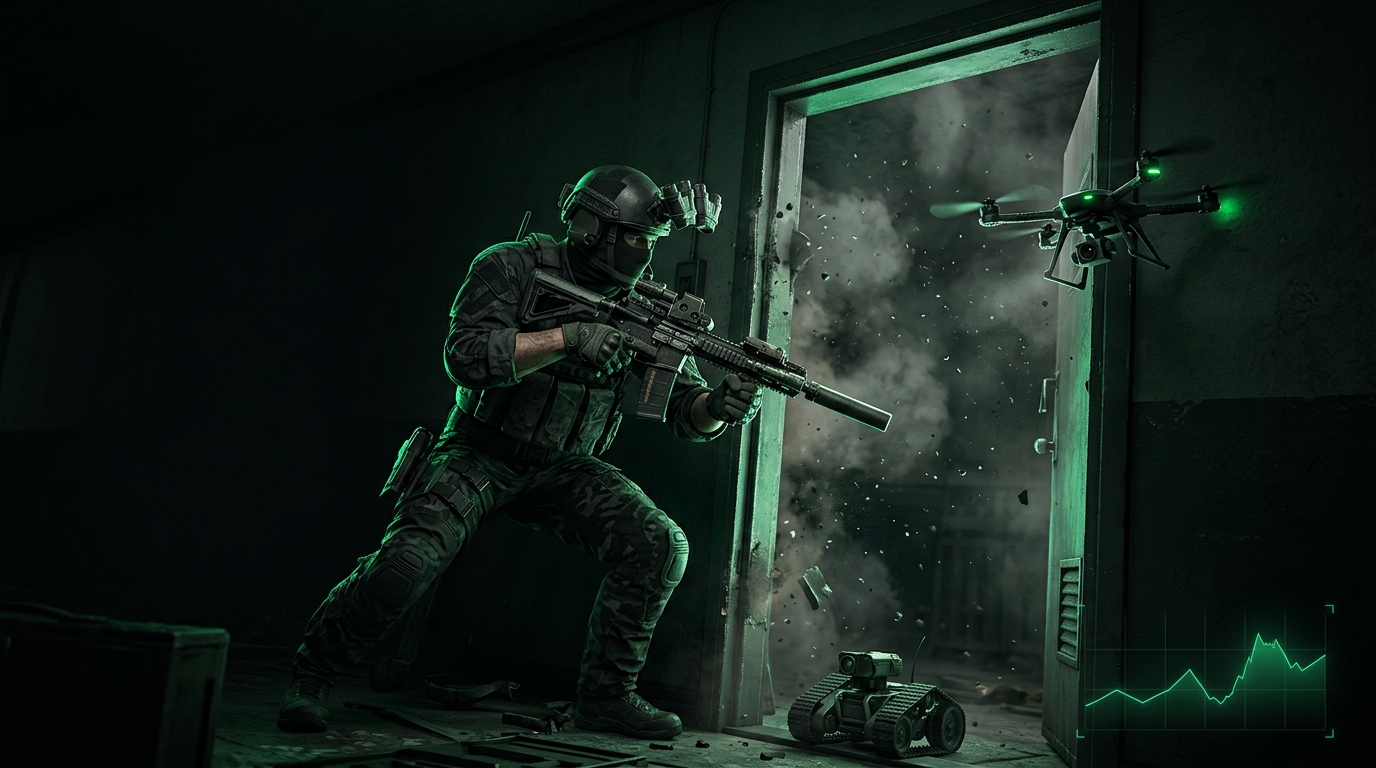
Siege scales beautifully with frame rate. Prioritize FPS and a sharp image so peeks and one-taps are consistent.
Best Rainbow Six Siege video settings
Set these in Options → Graphics:
| Setting | Recommended value |
|---|---|
| Display Mode | Fullscreen |
| Resolution | Native |
| Aspect Ratio | 16:9 |
| V-Sync | Off |
| Frame Rate Limit | Custom (below your refresh) |
| Render Scaling | 100 (avoid below native for clarity) |
| Texture Quality | Medium–High (if VRAM allows) |
| Texture Filtering | Anisotropic 4x |
| Shading Quality | Low |
| Shadow Quality | Low |
| Reflection Quality | Low |
| Ambient Occlusion | Off |
| Lens Effects | Off |
| Zoom-in Depth of Field | Off |
Render Scaling is Siege’s hidden performance dial — keep it at 100 for a sharp image, and only lower it if you’re badly GPU-limited.
Latency settings that matter most
- V-Sync: Off — always.
- Frame Rate Limit just under your refresh for stable pacing.
- Use the Vulkan API if it’s more stable on your hardware; test both DirectX and Vulkan.
- Keep frames high — Siege input feel scales with FPS.
Keep enemies readable
- Ambient Occlusion: Off to reduce dark haze in corners and doorways.
- Lens Effects: Off so muzzle flash and gadgets don’t blind you.
- Texture Filtering: Anisotropic 4x keeps distant surfaces crisp for spotting.
Windows & system checks
- Set Windows to a high-performance power mode.
- Close overlays, browsers, and capture tools.
- Use the correct discrete GPU on laptops.
- Keep GPU drivers current.
- Enable Hardware-Accelerated GPU Scheduling and test it.
- Consider disabling VBS for extra CPU headroom.
Pair this with How to Minimize Input Delay for Competitive Gaming and The Ultimate Guide to Timer Resolution for Gaming (then grab Tier1Suite).
Mouse and sensitivity
Siege duels are won on micro-adjustments. Dial in a repeatable sensitivity with Best Mouse DPI and Sensitivity for FPS and find your perfect eDPI.
Related guides
- Rainbow Six Siege Stuttering Fix
- Best Mouse DPI and Sensitivity for FPS
- How to Minimize Input Delay for Competitive Gaming
- How to Optimize Your Monitor for Gaming
The best Rainbow Six Siege settings keep Render Scaling at 100, drop shadows and reflections, turn off lens effects, and protect a high frame rate. Nail those and your peeks become first-shot consistent.
If a setting name changes after a patch, apply the same logic: lower shadows, reflections, and post-effects first, keep the image sharp, and protect FPS.
Frequently asked questions
Should I play Siege in fullscreen or borderless?
Exclusive fullscreen. It gives the game full control of the display, which means the lowest input delay and the most stable frame times.
Should I cap my FPS in Rainbow Six Siege?
Yes. A stable cap just below your refresh rate keeps frame pacing consistent, which matters more for holding angles than a higher but fluctuating peak.
Why do Siege pros use low graphics settings?
Low shadows and effects raise FPS and remove visual noise, making operators easier to spot through smoke, debris and dark corners.
Does Siege benefit from NVIDIA Reflex?
Yes, enable it if your GPU supports it. Combined with V-Sync off and a stable frame cap, it cuts the render queue and makes peeks feel more responsive.