How to Fix Lag Spikes & Stutter on AMD Radeon GPUs
Published
On this page
Radeon cards are strong gaming GPUs, but they have a handful of brand-specific quirks — the MPO bug, ULPS clock drops, and the occasional misbehaving Adrenalin feature — that cause stutter people often blame on the hardware. Almost all of it is fixable in software. Work down this list in order and the flicker, hitches, and micro-stutter usually clear up.
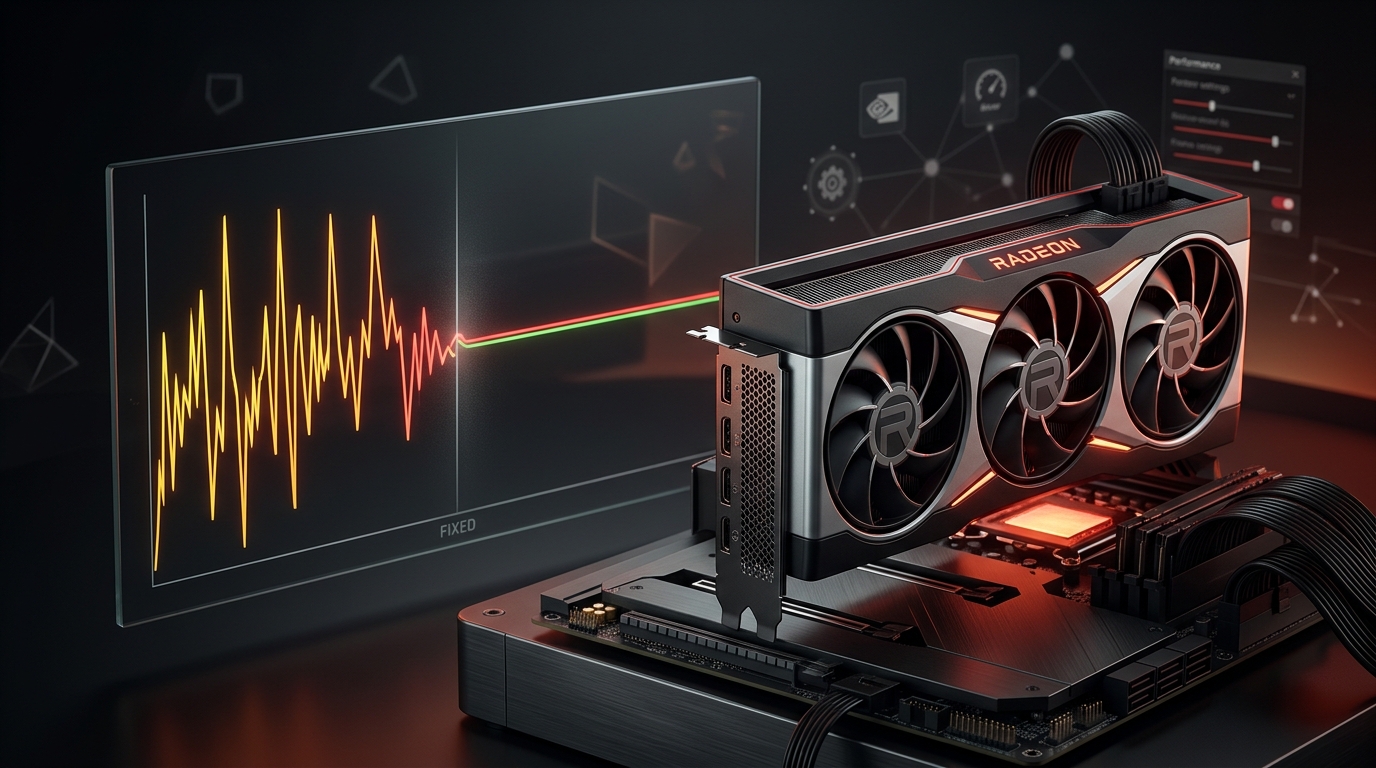
Most Radeon stutter is the MPO bug, a power-saving clock drop, or a stale Adrenalin install — not the card.
Fix the MPO bug first
Multiplane Overlay is a Windows feature that causes flickering, black flashes, and stutter on many Radeon cards — especially in borderless and windowed games. It’s the most AMD-specific cause and worth ruling out immediately:
- Apply the disable-MPO registry fix (AMD and the community provide a ready-made
.regfile that setsOverlayTestMode). - Reboot for it to take effect.
- The MPO-related flicker and stutter should disappear.
If your stutter is flicker- or borderless-related, this alone often solves it.
Clean-install Adrenalin
Adrenalin accumulates corrupt profiles and leftover files that cause stutter, particularly after updates:
- Run the AMD Cleanup Utility (or DDU in Safe Mode) to fully remove the driver.
- Reboot and install the latest Adrenalin fresh.
- Choose a factory reset during install so no old settings carry over.
This resolves a large share of post-update Radeon stutter.
Stop the GPU dropping clocks (ULPS & power)
AMD’s power saving can drop clocks too aggressively, and ramping back up shows as a stutter:
- Disable ULPS (Ultra Low Power State) to keep clocks more consistent.
- Set the High Performance Windows power plan — see Best Windows Power Plan for Gaming.
- In Adrenalin, set a custom tuning profile so the card holds stable clocks instead of bouncing.
Tame the Adrenalin features that backfire
Some Radeon features help in one game and stutter in another — test them per title:
- Radeon Anti-Lag / Anti-Lag 2: great for latency, but disable it in any game where it causes hitching.
- Radeon Chill: can cause frame-rate dips by design — turn it off for competitive play.
- Radeon Boost / Image Sharpening overlays: disable if you see stutter.
- Start from a known-good baseline: Best AMD Adrenalin Settings for Gaming.
Rule out the system-side causes
If stutter persists, it may not be the GPU:
- Clear the shader cache if hitches happen on new effects or maps.
- Enable and test HAGS — see Enable HAGS.
- Watch Task Manager during a hitch for a background app firing mid-game.
- If spikes are network rather than frame-time, see How to Fix Lag Spikes in Games.
Smooth out the remaining frame pacing
With the driver and clocks sorted, lock in consistent pacing. Raising your Windows timer resolution with Tier1Suite keeps frame delivery and input sampling steady — Auto Mode applies on launch and reverts on exit.
Related guides
- Best AMD Adrenalin Settings for Gaming
- Clear Shader Cache to Fix Stuttering
- How to Clean Install GPU Drivers with DDU
- How to Fix Lag Spikes in Games (Network and System)
Fix Radeon stutter in order: disable MPO, clean-install Adrenalin with a factory reset, stop ULPS clock drops, then test the Adrenalin features that backfire — and the flicker and hitches almost always clear up without replacing the card.
Frequently asked questions
Why does my AMD Radeon GPU stutter in games?
The most common AMD-specific causes are the Windows Multiplane Overlay (MPO) bug, a corrupt Adrenalin install, ULPS dropping the GPU's clocks to save power, and overlays or features like Anti-Lag and Radeon Chill misbehaving in a given title. A clean DDU driver install, disabling MPO, and turning off ULPS resolve the majority of Radeon micro-stutter and flicker cases.
What is the MPO bug on AMD GPUs and how do I fix it?
Multiplane Overlay (MPO) is a Windows feature that can cause flickering, black screens, and stutter on Radeon cards, especially in borderless or windowed apps. The fix is a registry change that disables MPO — AMD and community tools provide a ready-made registry file. After applying it and rebooting, the flicker and stutter tied to MPO disappear. It is one of the first things to try on a Radeon stutter problem.
Should I clean-install AMD Adrenalin to fix stutter?
Yes. Adrenalin can accumulate corrupt settings and leftover files that cause stutter, particularly after updates. Use the AMD Cleanup Utility or DDU in Safe Mode to fully remove the driver, then install the latest Adrenalin fresh. Choose a factory reset during install so no old profiles carry over. This resolves a large share of post-update Radeon stutter.
Does ULPS cause stutter on AMD cards?
It can. ULPS (Ultra Low Power State) lets the GPU drop to a very low clock to save power, and ramping back up under load shows as a stutter — it is most noticeable on multi-GPU or when the card idles aggressively. Disabling ULPS keeps clocks more consistent. Combine it with the High Performance Windows power plan and Adrenalin's tuning set to keep clocks stable.
Does timer resolution help AMD frame pacing?
Yes. Beyond the driver-side fixes, the default Windows timer ticks slowly, which can leave frame delivery and input sampling slightly uneven. Raising the timer resolution smooths pacing system-wide regardless of GPU brand. A tool like Tier1Suite applies the optimal resolution on game launch and reverts on exit, working alongside the Adrenalin fixes.