Best Stretched Resolution for 4K Monitors (2160p Stretched Setup)
Published
On this page
If you game on a native 3840×2160 panel, stretched resolution is where 4K’s biggest weakness becomes a strength: native 4K is so pixel-heavy that dropping to a 4:3 resolution delivers the largest FPS gain of any monitor class. The best all-round pick is 1920×1440 — full-width 4:3 models with a huge frame-rate jump — with sharper and lighter options on either side. Here is the full menu and the exact NVIDIA/AMD steps.
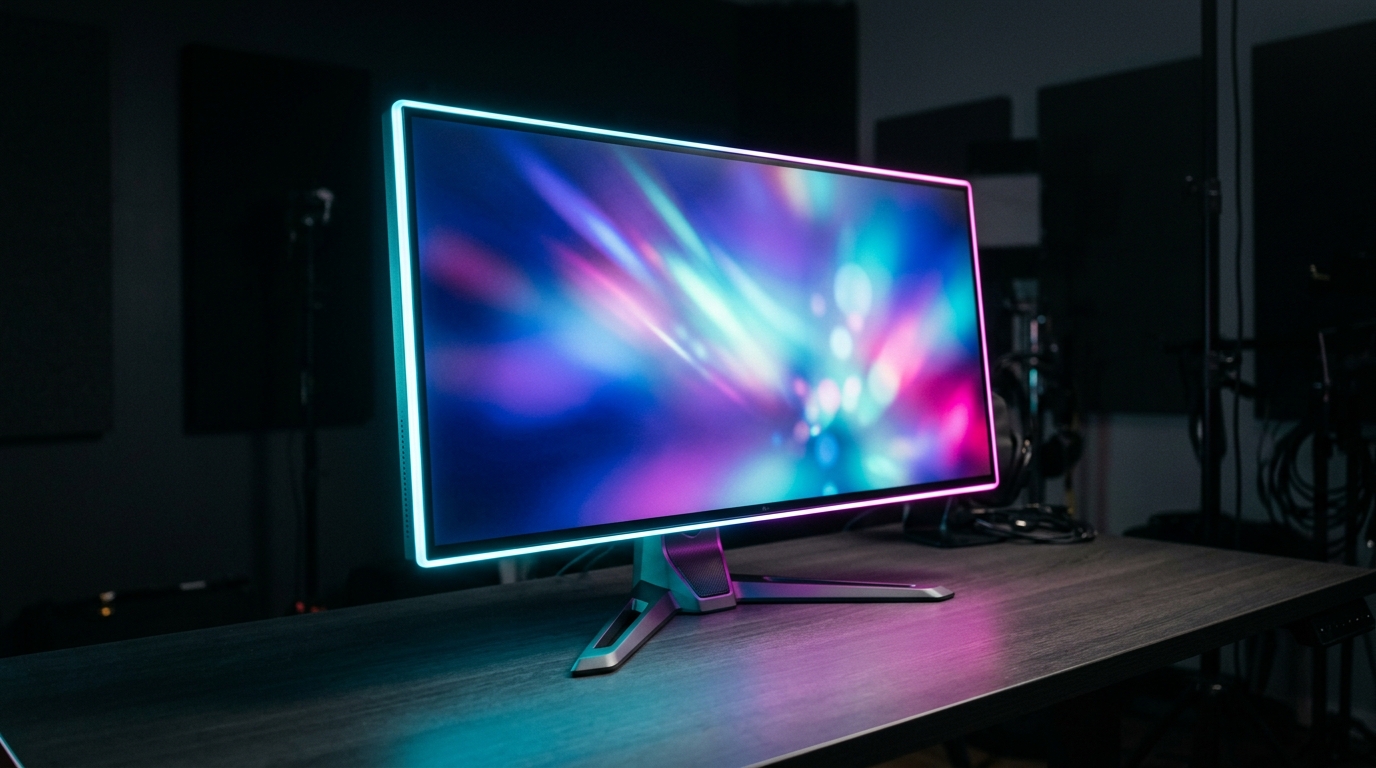
Stretched is a preference — wider models and a zoomed feel. Test it against native 3840×2160 and keep what feels more consistent.
How stretched res works on a 4K panel
Your panel is fixed at 3840×2160 physical pixels — about 8.3 million of them, more than double a 1440p screen and four times a 1080p one. When you pick a lower or narrower resolution, the GPU has to decide how to display it. By default it often aspect-scales, leaving black bars on the sides. Stretched resolution means forcing full-panel GPU scaling: the GPU takes that smaller 4:3 image and stretches it horizontally to cover the entire 2160p screen.
The result is wider enemy models and, because you are rendering a fraction of native 4K’s pixels, the biggest FPS gain of any resolution class. The trade is a softer image — but 4K has so many physical pixels that the higher-detail picks still hold up well.
Recommended stretched resolutions for 4K
All of these stretch up to fill a 3840×2160 panel. The higher you go, the sharper the image; the lower you go, the more FPS and the more “extreme” the stretch feels.
| Resolution | Aspect | Feel |
|---|---|---|
| 2560 × 1920 | 4:3 | Sharpest 4:3, full-width models — best if clarity matters |
| 1920 × 1440 | 4:3 | Wide 4:3, huge FPS jump — best all-rounder |
| 1728 × 1296 | 4:3 | Lighter pixel load, even more FPS |
| 1440 × 1080 | 4:3 | Classic 4:3, softer, near-max FPS |
| 1280 × 960 | 4:3 | Most aggressive 4:3, lowest pixels, max FPS |
| 3072 × 1920 | 16:10 | Mild stretch, taller view, keeps most sharpness |
Native 4K is so demanding that even 2560 × 1920 renders far fewer pixels than 3840×2160, so you keep a sharp image and still gain frames. For the classic competitive feel, 1920 × 1440 is the natural starting point.
Game on a different panel too? The stretched resolution calculator builds this same table for whatever native resolution you enter.
Force full-panel GPU scaling
This is the step that actually stretches the image. Do it before you set the resolution in-game.
NVIDIA
- Open NVIDIA Control Panel → Adjust desktop size and position.
- Scaling mode: Full-screen.
- Perform scaling on: GPU.
- Tick Override the scaling mode set by games and programs and Apply.
AMD
- Open AMD Software → Display.
- Set GPU Scaling: On.
- Set Scaling Mode: Full Panel.
If your chosen resolution isn’t in the list, create it first via Create Custom Resolution (NVIDIA) or Custom Resolutions (AMD). For a monitor-level method, see How To Get Custom Resolution / Stretch Res.
Per-game notes on 4K
The setup is the same in every game — force full-panel scaling, run exclusive Fullscreen, then pick your resolution — but the value shifts with how the game is bottlenecked. On 4K the GPU is almost always the limit, so the FPS gains are dramatic:
- Valorant — light enough to run native 4K, but stretched 1920×1440 still gives wider models and locks the frame cap easily on weaker cards.
- Apex Legends — very GPU-heavy at native 4K. 1920×1440 or 1440×1080 transforms the frame rate while widening models.
- Fortnite — native 4K is punishing in epic settings; 1920×1440 in Performance Mode, or 1440×1080 for the highest frames.
- CS2 — won’t stretch on its own, so the GPU-scaling step is mandatory. 1920×1440 for sharpness, or 1280×960 for the most aggressive classic stretch.
Still seeing black bars?
If the image is centered with bars on the sides, the stretch isn’t being applied. Check, in order:
- Game Display Mode is Windowed or Borderless — must be exclusive Fullscreen.
- NVIDIA scaling is set to Aspect ratio instead of Full-screen, or “Override” is unticked.
- AMD GPU Scaling is off, or Scaling Mode isn’t Full Panel.
- Your monitor’s own OSD scaling is overriding the GPU — set the monitor aspect/scaling to Full.
- A driver update reset your scaling — re-check after GPU driver updates.
Recommended monitors
A 4K panel is demanding, which is exactly why stretching down pays off. If you’re buying:
- The Gigabyte M28U (28” 4K 144Hz, HDMI 2.1) gives you native 4K for everything else and a huge FPS headroom when you stretch for competitive play.
- The LG UltraGear 32GS95UE (32” 4K 240Hz OLED, dual-mode 1080p 480Hz) for high-end rigs that want both clarity and refresh.
Related guides
- How To Get Custom Resolution / Stretch Res for Fortnite, Apex Legends, Halo, and any other game
- Best 4:3 Stretched Resolutions for Competitive FPS
- Best Stretched Resolution for 1440p Monitors
- Does Stretched Resolution Increase FPS?
- Stretched Resolution vs Native Resolution
A 4K panel gets the biggest stretched-res payoff of all: native 2160p is so heavy that dropping to 4:3 frees up enormous GPU headroom while keeping a usable image. Start at 1920×1440, force full-panel GPU scaling, and move up to 2560×1920 for clarity or down to 1440×1080 for max frames. Test each one stretched on your own monitor and let your aim make the final call.
Frequently asked questions
What is the best stretched resolution for a 4K monitor?
On a native 3840×2160 panel, 1920×1440 is the best all-round 4:3 pick — it gives full-width models and a large FPS jump because it renders only about a third of native 4K's pixels. If you want the image to stay sharper, 2560×1920 keeps more detail; if you want maximum frames, drop to 1440×1080. All three stretch to fill the entire 4K screen.
Why does stretched resolution boost FPS so much on a 4K monitor?
Native 4K is roughly 8.3 million pixels — far more than 1080p or 1440p — so it punishes the GPU hard. Dropping to a 4:3 resolution like 1920×1440 (2.76M) or 1440×1080 (1.56M) cuts the pixel count by 65–80%, which is a much bigger relative reduction than on lower-res panels. That makes the FPS gain on a 4K monitor the largest of any resolution class.
Does stretched resolution look blurry on a 4K monitor?
It softens because the GPU is scaling a lower image up to 3840×2160, but 4K has so many physical pixels that mid-range picks like 1920×1440 still look reasonable. The lower you go (1440×1080, 1280×960), the softer it gets. If clarity matters, stay near 2560×1920 at the top of the table.
Should I just run native 4K instead of stretched?
If your GPU can already sustain your target frame rate at native 4K, native gives the cleanest image. Stretched res on 4K is mainly for competitive players who want wider enemy models and the big FPS headroom that comes from rendering far fewer pixels. Test both on your own panel and keep whichever feels more consistent for your aim.
Why does my 4K monitor show black bars instead of stretching?
Black bars mean the image is being aspect-scaled, not stretched to fill. Force full-panel scaling at the GPU level — Full-screen + Perform scaling on GPU on NVIDIA, or GPU Scaling On with Full Panel mode on AMD — and run the game in exclusive Fullscreen. Your monitor's own OSD scaling can also override the GPU, so set that to Full too.