FragPunk Stretched Resolution Guide — Best Values & Setup
Published
On this page
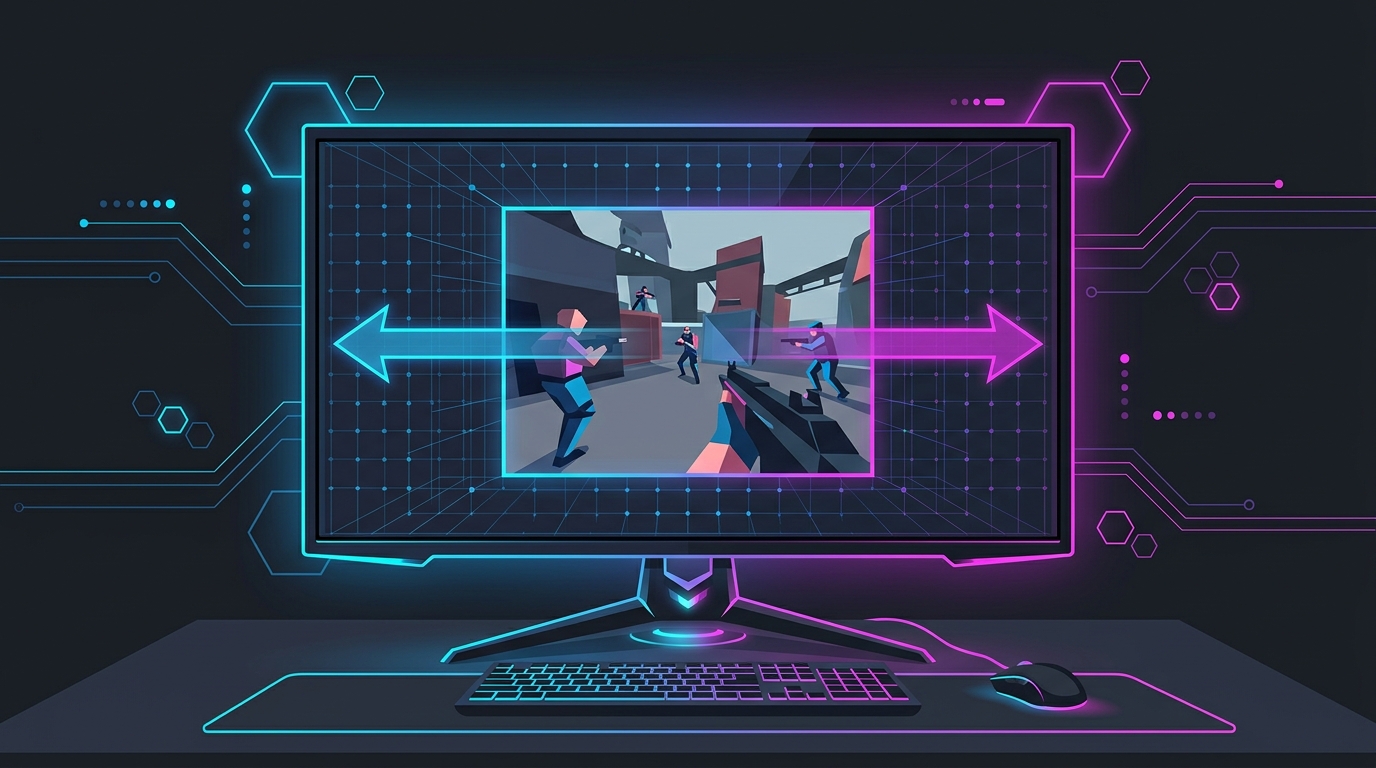
FragPunk players reach for stretched resolution for the same reasons as any competitive shooter: wider enemy models that are easier to track, and a few extra frames from rendering fewer pixels. Mapping a 4:3 image like 1440x1080 onto a 16:9 panel makes targets look broader while freeing up GPU headroom. The key in FragPunk is the display mode — it has to run in exclusive Fullscreen for the stretch to apply — plus full-panel GPU scaling so the image fills the screen instead of sitting in a centered box. Here’s the clean setup.
Best stretched resolutions for FragPunk
All of these stretch up to fill a 1920x1080 panel. Pick based on how much model width and FPS you want versus image sharpness.
| Base resolution | Stretched to | Aspect | Feel |
|---|---|---|---|
| 1280x960 | 1920x1080 | 4:3 | Widest models and most FPS; softest image. Good for weaker GPUs. |
| 1440x1080 | 1920x1080 | 4:3 | The favorite — strong width, clear FPS bump, still sharp. Start here. |
| 1706x1080 | 1920x1080 | 16:10 | Mildest stretch, closest to native sharpness, smallest width gain. |
Most FragPunk players settle on 1440x1080 — it widens models clearly without the blur of 1280x960.
Step 1 – Create the custom resolution
Your GPU needs the 4:3 (or 16:10) resolution to exist before FragPunk will list it.
NVIDIA
- Right-click the desktop → NVIDIA Control Panel.
- Change resolution → Customize… → tick Enable resolutions not exposed by the display.
- Create Custom Resolution, enter 1440 x 1080 at your monitor’s max refresh rate, Test → Save.
AMD
- Right-click the desktop → AMD Software: Adrenalin Edition.
- Settings (gear) → Display → Custom Resolutions → Create New.
- Enter 1440 x 1080 at your refresh rate and save.
If you’d rather not touch the driver manually, Tier1Suite creates the resolution and sets full-panel scaling in one click, with a 15-second auto-revert safety net — that covers Steps 1 and 2 for you.
Step 2 – Force full-screen GPU scaling (this is the key step)
This is the step that prevents black bars. Without it, the monitor renders 1440x1080 in a centered box and you get pillarboxing instead of a stretched image.
NVIDIA: NVIDIA Control Panel → Adjust desktop size and position → Scaling mode = Full-screen, Perform scaling on = GPU, tick Override the scaling mode set by games and programs. Apply.
AMD: Adrenalin → Display → GPU Scaling On, Scaling Mode = Full Panel. Apply.
That override tickbox matters: FragPunk can otherwise pass its own scaling preference to the driver and put the black bars back.
Step 3 – Apply it in FragPunk
- Launch FragPunk → Settings → Display / Graphics.
- Set Display Mode to Fullscreen — this is the critical step. FragPunk needs exclusive Fullscreen for the stretch to apply; Borderless and Windowed render at the desktop’s native 16:9 and you’ll see no stretch at all.
- Set Resolution to 1440x1080 (it appears in the dropdown once created in Step 1).
- Apply and confirm.
If the resolution doesn’t show up, switch Display Mode to Fullscreen first, then re-open the resolution list — FragPunk only exposes custom 4:3 modes in exclusive Fullscreen. Once it’s set, the wider models make peeks and duels easier to read.
If you still get black bars
- FragPunk is in Borderless or Windowed — switch to exclusive Fullscreen.
- The Override the scaling mode box (NVIDIA) isn’t ticked — re-check Step 2.
- Scaling is set to Display instead of GPU — switch it to GPU.
- Your monitor’s OSD aspect setting overrides the GPU — set it to Full / Fill.
- On AMD, GPU Scaling is Off or on Preserve Aspect Ratio — set it to Full Panel.
Stretched res and FragPunk performance
Set realistic expectations. Going from 1920x1080 to 1440x1080 renders roughly a quarter fewer pixels, so a GPU-bound rig will see a genuine FPS bump and steadier 1% lows. If your CPU is the bottleneck instead — common in busy Shard Clash rounds with lots of ability effects — the frame gain will be smaller, and the real benefit becomes the wider models rather than raw FPS. Pair the stretch with clean drivers and a stable frame cap for the most consistent feel.
Related guides
Frequently asked questions
How do I get stretched resolution in FragPunk?
Create a 4:3 custom resolution such as 1440x1080 in your GPU control panel, force full-screen (full-panel) GPU scaling, then select that resolution in FragPunk with the display mode set to exclusive Fullscreen. Borderless will not stretch the image.
What is the best stretched resolution for FragPunk?
1440x1080 stretched to 1920x1080 is the most popular choice — noticeably wider models with a still-sharp image. 1280x960 stretches harder for more FPS on weaker GPUs, and 1706x1080 is a milder option if you want less blur.
Does FragPunk need exclusive fullscreen for stretched res?
Yes. The stretch only applies in exclusive Fullscreen. In Borderless or Windowed, FragPunk renders at your desktop's native 16:9 and you'll see no stretch, so set Display Mode to Fullscreen before choosing the custom resolution.
Is stretched resolution bannable in FragPunk?
Changing your resolution and GPU scaling are standard display settings, not game modifications, so they don't tamper with the client or its anti-cheat. Plenty of competitive shooters are played stretched. As always, only you accept the risk, but a custom resolution is a display-level change, not a hack.
Does stretched resolution give more FPS in FragPunk?
Usually yes on a GPU-bound system, because 1440x1080 renders about a quarter fewer pixels than 1920x1080. The size of the gain depends on whether your GPU or CPU is the bottleneck in a given fight.