Call of Duty: Black Ops 6 Stretched Resolution Guide for FPS
Published
On this page
Black Ops 6 multiplayer players run stretched res for wider, more visible enemy models and, with the right settings, a useful FPS bump. Unlike many shooters, BO6 includes a built-in Aspect Ratio override, so you have two clean ways to get the stretched look. This guide covers both the in-game route and the NVIDIA/AMD driver route.
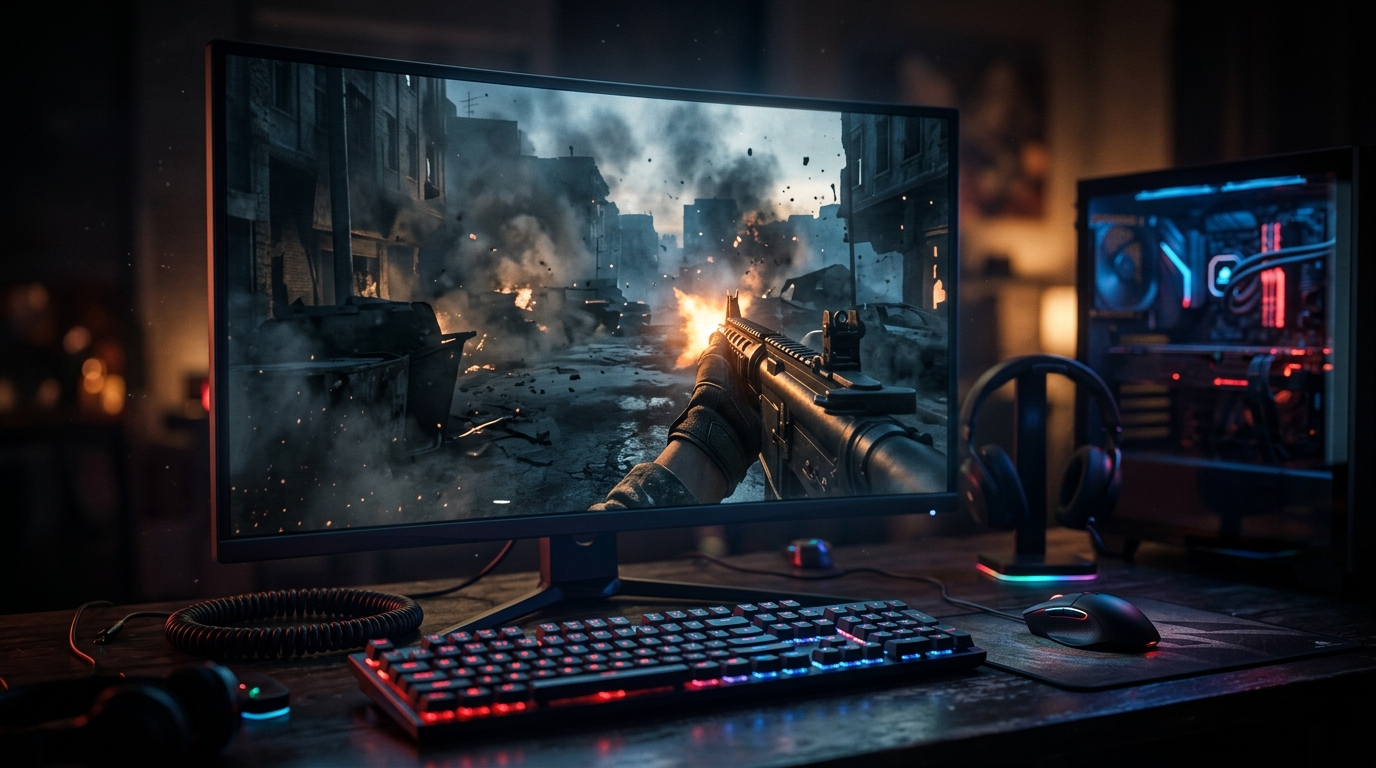
Stretched is a preference — wider models and a zoomed feel. Test it against native 16:9 and keep whatever makes your aim more consistent.
Two ways to stretch in Black Ops 6
BO6 is one of the friendlier titles for stretched res because the option lives partly in the game. The in-game Aspect Ratio override stretches the image internally — quick and reliable. The driver route lets you also drop the actual output resolution for FPS. Many players use the in-game override for the look and lean on Render Resolution for frames. We cover both below.
Recommended Black Ops 6 stretched resolutions
| Resolution | Aspect | Feel |
|---|---|---|
| 1280 x 960 | 4:3 | Classic stretched, widest models |
| 1440 x 1080 | 4:3 | Sharper 4:3, still wide |
| 1920 x 1080 + Aspect Ratio 4:3 | 4:3 override | Full panel, no pixel drop |
1280 x 960 via the driver gives the wide look plus an FPS gain. If you only want the wide models without touching resolution, use the in-game Aspect Ratio = 4:3 at native 1080p.
Step 1 – Force full-panel GPU scaling (driver route)
NVIDIA
- Open NVIDIA Control Panel → Adjust desktop size and position.
- Scaling mode: Full-screen.
- Perform scaling on: GPU.
- Tick Override the scaling mode set by games and programs and Apply.
AMD
- Open AMD Software → Settings → Display.
- Set GPU Scaling: On.
- Set Scaling Mode: Full Panel.
If your 4:3 resolution isn’t listed, create it first via Create Custom Resolution (NVIDIA) or Custom Resolutions (AMD). For a monitor-level method, see How To Get Custom Resolution / Stretch Res.
Step 2 – Set the resolution in Black Ops 6
- Launch Black Ops 6 → Settings → Display.
- Set Display Mode to Fullscreen — stretched will not work in Windowed or Borderless.
- Driver route: set Resolution to your 4:3 value, such as
1280 x 960. - In-game route: set Aspect Ratio to 4:3 (or 3:2 for a milder stretch) and leave Resolution at native.
- Apply the changes.
The in-game Aspect Ratio dropdown is the key BO6-specific lever — most other Call of Duty competitors don’t expose it. Pick one route or the other; you don’t need both at once.
Render resolution vs. actual resolution
BO6 also has a Render Resolution scale that lowers the internal render target while keeping your output resolution and aspect the same. It’s a strong FPS lever, but it does not stretch the image — for the wider-models look you need either the 4:3 output resolution or the Aspect Ratio override. Stack a lower Render Resolution on top of your stretched setup for extra frames without changing the wide look.
Still seeing black bars?
This is the #1 stretched-res complaint, and it’s almost always the scaling step:
- Display Mode is Windowed or Borderless — it must be Fullscreen.
- You used the driver route but NVIDIA scaling is set to Aspect ratio instead of Full-screen, or “Override the scaling mode set by games” is unticked.
- AMD GPU Scaling is off, or Scaling Mode isn’t Full Panel.
- Your monitor’s own scaling (OSD) is overriding the GPU — set the monitor’s aspect/scaling option to Full.
- A driver update reset your scaling — re-check these settings after every GPU driver update.
Related guides
- How To Get Custom Resolution / Stretch Res for Fortnite, Apex Legends, Halo, and any other game
- Best 4:3 Stretched Resolutions for Competitive FPS
- Does Stretched Resolution Increase FPS?
- Is Stretched Resolution Bannable?
- How Stretched Resolution Makes Aim Easier
Black Ops 6 makes stretched res easy: use the in-game Aspect Ratio override for the wide look, or force full-panel GPU scaling and pick 1280 x 960 for the look plus an FPS bump. Either way, set Display Mode to Fullscreen and the black bars are gone.
Frequently asked questions
How do I get stretched resolution in Black Ops 6?
Black Ops 6 has two routes. The simplest is the in-game Aspect Ratio override: in Settings under Display, set Aspect Ratio to a 4:3 or 3:2 value and Display Mode to Fullscreen. For full control you can also force full-panel GPU scaling in NVIDIA or AMD and select a 4:3 output resolution. Combining the driver scaling step with Fullscreen guarantees the image fills the panel without black bars.
What resolution should I use for stretched Black Ops 6?
If you use the in-game Aspect Ratio override, leave Resolution at native 1080p and set Aspect Ratio to 4:3 for the classic wide-model look. If you prefer the driver route, 1280x960 is the standard 4:3 pick and 1440x1080 is a sharper 4:3 option. You can also lower the Render Resolution scale on top for extra frames. Pick whatever balances stretch and clarity for your aim.
Is stretched resolution bannable in Black Ops 6?
No. Both the in-game Aspect Ratio override and GPU display scaling are legitimate, built-in display features — not modifications of the game. You are not editing files or injecting code, so Ricochet anti-cheat does not flag them. Stretched resolution is standard, sanctioned PC behavior in Call of Duty.
Does stretched resolution increase FPS in Black Ops 6?
It can, depending on the route. Using the in-game Aspect Ratio override alone changes the look without lowering pixel count, so it does not boost FPS by itself. Selecting a lower 4:3 resolution via the driver, or dropping the in-game Render Resolution scale, is what reduces rendered pixels and lifts frames. On GPU-bound systems those cuts add up to a clear gain.
Why does Black Ops 6 show black bars when I pick a 4:3 resolution?
By default your GPU centers the narrower 4:3 image inside your 16:9 panel and pads the sides with black bars instead of stretching it. If you use the driver route you must force full-panel GPU scaling to remove the bars. The built-in Aspect Ratio override sidesteps this by stretching within the game itself when Display Mode is Fullscreen.