Best Warzone Black Ops Royale Settings for FPS and Performance
On this page
Warzone Black Ops Royale plays best when you prioritize frame pacing, visibility, and low input lag over flashy effects. These settings are the strongest starting point for smoother fights on Avalon without turning the image into a blurry mess.
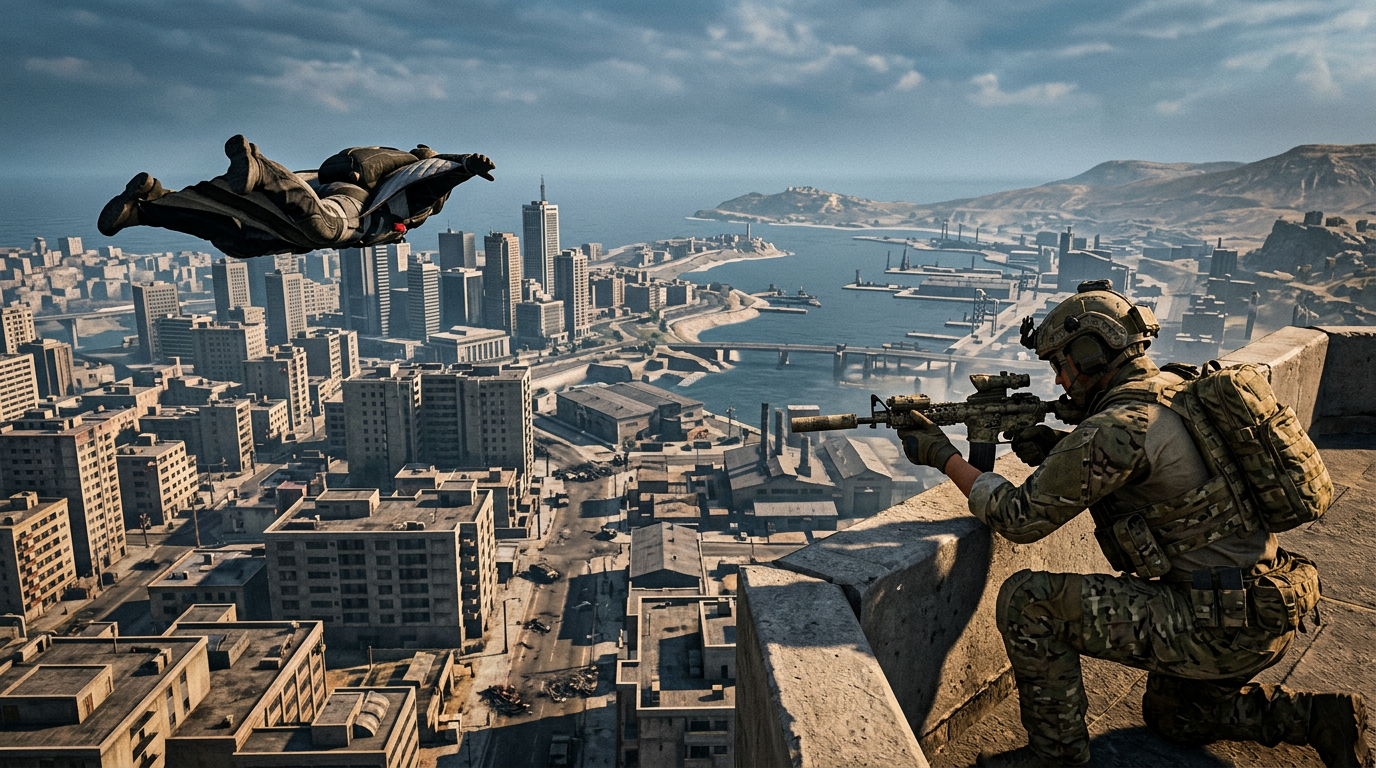
Black Ops Royale is built around ground loot, fast rotations, and high-risk fights. A stable, readable setup matters more than max visuals.
Best Warzone Black Ops Royale settings
| Setting | Recommended value |
|---|---|
| Display Mode | Fullscreen Exclusive or Fullscreen |
| Resolution | Native |
| V-Sync | Off |
| Custom Frame Rate Limit | Cap near refresh rate or slightly below |
| NVIDIA Reflex Low Latency | On |
| Field of View | 100 to 110 |
| World Motion Blur | Off |
| Weapon Motion Blur | Off |
| Depth of Field | Off |
| Film Grain | 0.00 |
| Shadow Quality | Low or Normal |
| Screen Space Shadows | Low or Off |
| Volumetric Quality | Low |
| Ambient Occlusion | Low or Off |
| Texture Resolution | Normal or High depending on VRAM |
| On-Demand Texture Streaming | Off if unstable, On only if it behaves well |
| Upscaling | Off at native if stable, otherwise DLSS or FSR Quality |
If the names look slightly different after an update, keep the same logic: lower the settings that add blur, clutter, or heavy GPU load first.
Why Black Ops Royale feels different from standard Warzone
Black Ops Royale is less about rushing a perfect loadout and more about surviving the first few minutes with whatever you find. That makes frame stability and readability even more important because more fights happen with uneven gear, tighter looting windows, and more pressure around Activities, Cradle Breaches, and Redeploy Towers.
On Avalon, you also deal with long sightlines, mixed indoor fights, and a lot of elevation changes. If your settings are too heavy, the game can feel rough exactly when the mode gets busiest.
Fix display and latency settings first
These are the easiest high-value changes:
- Use Fullscreen so the game gets the cleanest display focus possible.
- Turn V-Sync off to avoid the extra latency it adds.
- Keep NVIDIA Reflex Low Latency on if you use an NVIDIA GPU.
- Set a clean FPS cap if uncapped play gives you worse frame pacing.
- Turn both motion blur options off immediately.
Good FPS cap starting points
141 FPSfor 144 Hz162 FPSfor 165 Hz237 FPSfor 240 Hz117 FPSfor 120 Hz
If the game feels worse uncapped, a steady cap is usually better than chasing a bigger number on the counter.
Graphics settings to lower first
Not every graphics setting hurts performance equally. These are usually the best first cuts for competitive play:
- Shadow Quality
- Screen Space Shadows
- Volumetric Quality
- Ambient Occlusion
- World Motion Blur
- Weapon Motion Blur
- Depth of Field
- Film Grain
These options either cost a lot of GPU performance, make the image harder to read, or both.
Best texture and streaming choices
Texture settings are worth handling carefully because average FPS does not always tell the full story. You can keep decent average performance and still get ugly hitching if VRAM usage is too high.
Good rule for most PCs
- use High textures only if your card has comfortable VRAM headroom
- drop to Normal if you have
8 GB VRAMor less - test On-Demand Texture Streaming only if your connection and drive are stable
- turn streaming off if it causes hitches, pop-in, or odd bandwidth spikes
If your main problem is stutter rather than low FPS, go straight to Warzone Black Ops Royale Stuttering Fix: Stop FPS Drops and Frame Time Spikes on PC.
Best FOV starting point
For most players, 100 to 110 is the best competitive FOV window in Black Ops Royale.
- stay near
100if you want slightly larger targets - move toward
105to110if map awareness matters more to you - avoid pushing FOV too high if distant targets become hard to track
For a full breakdown, use Best FOV for Warzone Black Ops Royale on PC and Console.
Best settings by hardware goal
If you want higher FPS on a mid-range PC
- keep shadows, screen space shadows, and volumetrics low
- use DLSS Quality or FSR Quality before you crush clarity with aggressive modes
- turn texture resolution down one step if VRAM is tight
- cap FPS for steadier fights
If you want the cleanest high-refresh setup
- stay as close to native resolution as your system allows
- keep motion blur, depth of field, and film grain off
- use NVIDIA Reflex on supported GPUs
- keep the image clean before you start adding upscale or frame generation tricks
System-side checks that are actually worth doing
Do not bury this guide under random registry tweaks. The most useful checks are:
- Make sure the game is installed on an SSD.
- Close overlays, browser tabs, and capture tools you do not need.
- Use the correct discrete GPU on laptops.
- Reboot after driver updates or major patches.
- Use a strong Windows gaming power mode.
These evergreen guides help if the problem goes beyond in-game settings:
- How to Minimize Input Delay for Competitive Gaming
- The Ultimate Guide to Timer Resolution for Gaming + Tier1Timer
- How to Optimize Your Monitor for Gaming
- How to debloat Windows to optimize PC for Gaming - Fortnite, Apex, Warzone, COD, Valorant
Build your Black Ops Royale setup
If you are building a full competitive setup, read these next:
- Warzone Black Ops Royale Best Visibility Settings for Competitive Play
- Warzone Black Ops Royale Best Audio Settings for Footsteps and Directional Sound
- Warzone Black Ops Royale Stuttering Fix: Stop FPS Drops and Frame Time Spikes on PC
- Warzone Black Ops Royale DLSS, FSR, and Frame Generation Best Settings
- Best FOV for Warzone Black Ops Royale on PC and Console
Related guides
- Warzone Black Ops Royale Best Visibility Settings for Competitive Play
- Warzone Black Ops Royale Best Audio Settings for Footsteps and Directional Sound
- Warzone Black Ops Royale Stuttering Fix: Stop FPS Drops and Frame Time Spikes on PC
- How to Minimize Input Delay for Competitive Gaming
The best Warzone Black Ops Royale settings are the ones that keep fights smooth, readable, and responsive once the match gets chaotic. Start by cutting the expensive blur-heavy effects, use a clean FPS cap if needed, and only lean on upscaling when your hardware actually needs the help.