Warzone Black Ops Royale DLSS, FSR, and Frame Generation Best Settings
On this page
Warzone Black Ops Royale gives you several ways to trade image quality for more FPS, but the best choice depends on whether you care more about competitive responsiveness or raw smoothness. This guide breaks down when to use DLSS, FSR, and frame generation without wrecking clarity on Avalon.
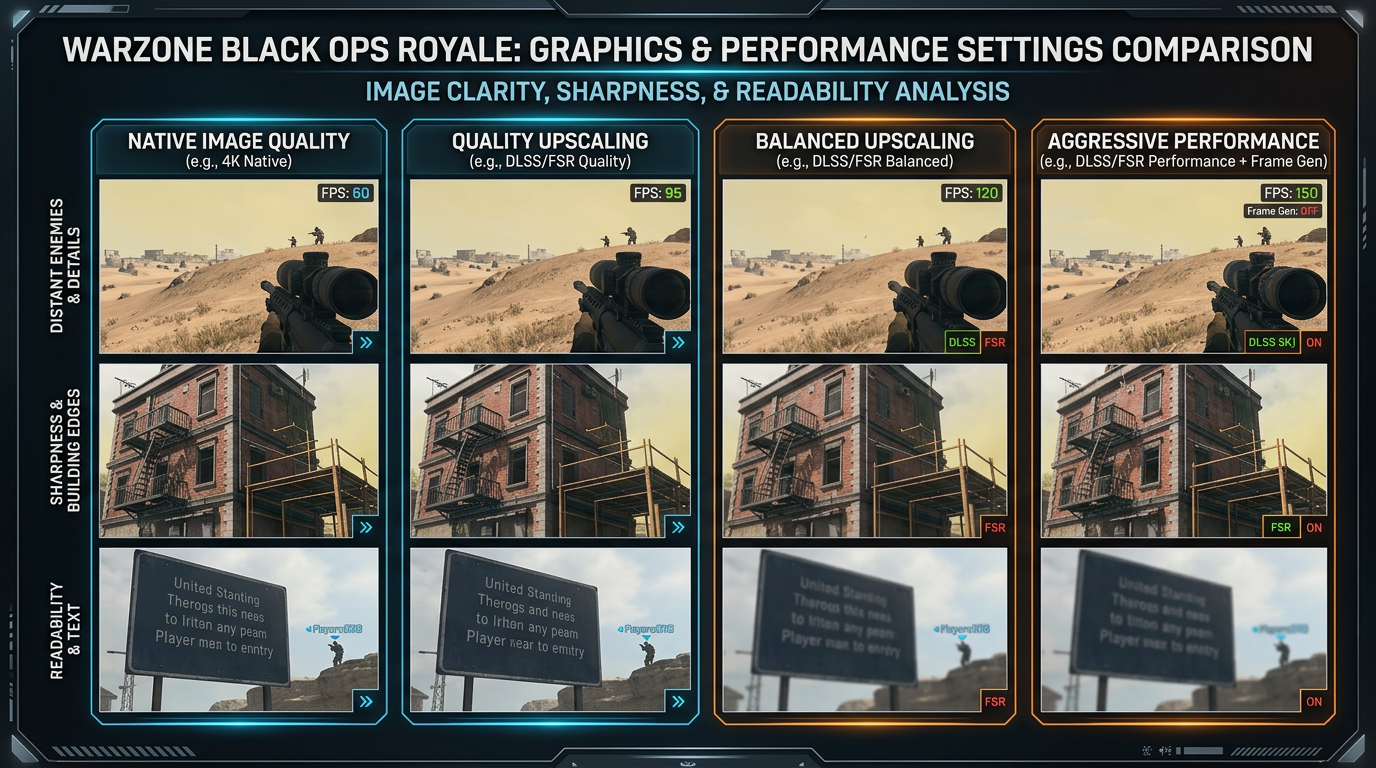
More FPS is useful only if the image still stays readable and your input still feels trustworthy.
Best Warzone Black Ops Royale upscaling settings
| Option | Competitive recommendation |
|---|---|
| DLSS | Off if native FPS is already stable, otherwise start with Quality |
| FSR | Use Quality first, then Balanced if you still need more FPS |
| Frame Generation | Off for competitive play |
| NVIDIA Reflex Low Latency | On |
| Sharpness | Use lightly only if the image looks too soft |
| Resolution Scale | Native first, then upscale only when needed |
If your goal is ranked-style competitive play, treat clarity and latency as more important than inflated FPS numbers.
When DLSS makes sense
DLSS is usually the best starting point for NVIDIA users because it can improve performance without crushing image quality as hard as the more aggressive scaling modes.
Best DLSS approach
- stay at native resolution if your FPS is already stable
- use DLSS Quality first if you need extra headroom
- move to Balanced only if Quality still is not enough
- avoid Performance unless your hardware is genuinely struggling
For competitive play, DLSS Quality is usually the safest option when native is just a little too heavy.
When to use FSR
FSR is the practical fallback for AMD users and for systems where DLSS is not available.
Best FSR approach
- start with Quality
- use Balanced only if you still cannot reach your FPS target
- avoid the most aggressive modes unless you accept a softer image
The harder you push the upscale mode, the harder it becomes to keep distant targets and small movement cues clean.
Should you use frame generation?
For serious competitive play, no.
Frame generation can make the game look smoother, but it is usually not the best trade if you care about fast input response and reliable gunfeel.
Why many players keep it off competitively
- it can add latency
- camera movement can feel less direct
- the extra smoothness can hide a weaker real input response
- it may create visual oddities around fast motion
If you play casually and just want a smoother-looking experience, frame generation is easier to justify. For competitive play, improve the base frame rate first.
Best settings by goal
If you want the cleanest competitive setup
- native resolution if possible
- DLSS Off or DLSS Quality
- FSR Off unless you need it
- Frame Generation Off
- NVIDIA Reflex On
If you need more FPS on weaker hardware
- use DLSS Quality or FSR Quality first
- move to Balanced only if Quality still is not enough
- lower shadows, ambient occlusion, and volumetrics before using very aggressive upscale modes
- keep blur-heavy effects off
Upscaling versus lowering regular settings
Players often reach for DLSS or FSR too early when the smarter move is simply reducing the settings that hurt both FPS and readability.
Lower these first:
- shadows
- screen space shadows
- ambient occlusion
- volumetric quality
- world motion blur
- weapon motion blur
- depth of field
That usually keeps the image cleaner while still improving performance.
If the image looks too soft
If Warzone Black Ops Royale becomes blurry after turning on upscaling:
- move from Balanced back to Quality
- use only mild sharpening if the game offers it cleanly
- lower heavy graphics settings instead of forcing a more aggressive upscale mode
- return to native if your system can hold the target FPS
If your main problem is hitching rather than low average FPS, go straight to Warzone Black Ops Royale Stuttering Fix: Stop FPS Drops and Frame Time Spikes on PC.
Reflex and frame pacing still matter
Your upscaler choice is only part of the story.
Keep these in place as well:
- NVIDIA Reflex Low Latency on for supported GPUs
- V-Sync off
- Fullscreen on
- cap FPS slightly below refresh if uncapped play feels unstable
These choices often matter as much as DLSS or FSR itself.
Pair this with the main settings guide
Use this article with:
- Best Warzone Black Ops Royale Settings for FPS and Performance
- Warzone Black Ops Royale Best Visibility Settings for Competitive Play
- How to Minimize Input Delay for Competitive Gaming
Related guides
- Best Warzone Black Ops Royale Settings for FPS and Performance
- Warzone Black Ops Royale Stuttering Fix: Stop FPS Drops and Frame Time Spikes on PC
- Best FOV for Warzone Black Ops Royale on PC and Console
- The Ultimate Guide to Timer Resolution for Gaming + Tier1Timer
The best Warzone Black Ops Royale DLSS, FSR, and frame generation settings depend on what you actually want from the game. For competitive play, keep the image clean, keep Reflex on, and use the lightest upscale mode that still helps instead of chasing artificial smoothness from frame generation.