The Finals Stuttering Fix: Stop FPS Drops and Frame Time Spikes on PC
On this page
The Finals can feel terrible even when the average FPS counter looks fine if shader behavior, VRAM pressure, or bad frame pacing start wrecking your frame times. This guide focuses on the fastest fixes to stop stutter and make the game feel more stable in real matches.
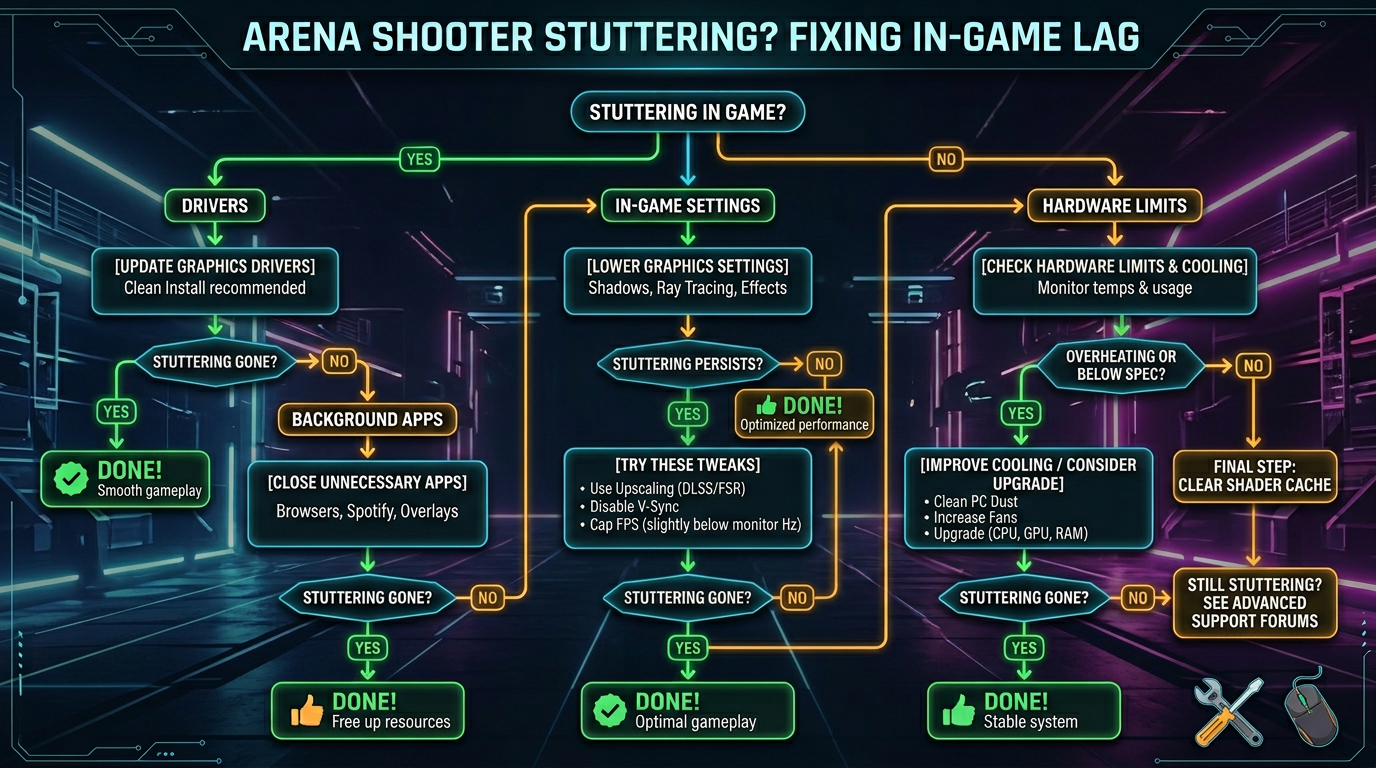
Use this as a checklist. Most stutter fixes come from cleaning up the obvious problem, not stacking ten random tweaks.
What The Finals stutter usually looks like
If the game feels rough but your FPS number still looks decent, you are usually dealing with frame time spikes instead of low FPS alone.
Common signs include:
- hitching when you turn quickly
- brief freezes when heavy destruction starts
- sudden drops during gadget spam or explosions
- inconsistent mouse feel even at high FPS
- worse performance after a patch or GPU driver update
That is why a stutter guide needs a different approach than a general Best The Finals Settings for FPS and Performance.
Change these settings first
Start with the settings most likely to improve frame delivery quickly.
| Setting | Recommended value |
|---|---|
| Window Mode | Fullscreen |
| V-Sync | Off |
| Frame Rate Limit | Match refresh or cap slightly below it |
| Shadow Quality | Low |
| Effects Quality | Low |
| Post Processing | Low |
| Motion Blur | Off |
| Lens Distortion | Off |
| Ray Tracing | Off |
| Texture Quality | Medium if VRAM is tight |
| Upscaling | Quality or Balanced if native is unstable |
If your card has limited VRAM, texture settings matter more than many players think. Running textures too high can create ugly hitching long before your average FPS collapses.
Let shader behavior settle after updates
The Finals can feel much worse right after a game patch or fresh driver install if shaders need to rebuild or re-cache.
What to do
- Launch the game and let any initial processing finish.
- Restart the game after the first launch if stutter feels especially bad.
- Play a real match before judging the new setup.
- If performance is still rough, update or roll back to a stable GPU driver.
Do not assume your system suddenly became weak just because one patch introduced hitching.
Clean up your GPU driver situation
Driver problems are one of the fastest ways to create new stutter.
Best order to test
- Install the latest stable GPU driver.
- If the issue started immediately after a driver update, test the previous stable version.
- Reset aggressive driver overrides before troubleshooting deeper.
- Disable recording tools and overlays while testing.
If you have been changing lots of GPU software options, get back to a clean baseline first.
Watch VRAM, RAM, and background apps
The Finals can become choppy when your system runs out of headroom even if CPU and GPU usage do not look maxed out.
Warning signs
- VRAM is close to full
- system RAM usage is already high before a match starts
- Discord, browsers, RGB software, and capture tools are all open
- performance gets worse the longer you play
Fast fixes
- Close apps you do not need.
- Disable Steam and Discord overlays.
- Lower texture quality one step.
- Reboot the PC if memory use has become messy after a long day.
Use an SSD and keep free space available
Storage still matters for smoothness. If the game is on a slow or nearly full drive, traversal and effect-heavy moments can feel much worse.
For best results:
- use an SSD
- keep at least
15%to20%free space on the drive - avoid big downloads or file transfers while playing
A stable frame cap often feels better
Running uncapped is not always the smoothest option. If your FPS jumps around heavily, capping it can improve consistency.
Good starting caps
141 FPSfor 144 Hz237 FPSfor 240 Hz117 FPSfor 120 Hz
Test capped and uncapped play in actual matches. Pick the option that gives you steadier fights, not the one that wins a screenshot battle.
Windows fixes worth trying
These are the system-side checks most likely to help without turning this into generic tweak spam:
- Enable Game Mode.
- Use a strong power plan or gaming mode on your PC.
- Make sure the game is using the correct GPU on laptops.
- Turn off overlays and unnecessary startup apps.
- Keep the game on a fast SSD.
If your goal is smoother input as well as smoother frame pacing, pair this with How to Minimize Input Delay for Competitive Gaming and The Ultimate Guide to Timer Resolution for Gaming — and grab Tier1Timer to apply it automatically.
If stutter started after a patch
When performance tanks after an update, use this order:
- Verify game files.
- Reset the most aggressive graphics settings first.
- Test a stable driver.
- Lower textures, effects, and shadows one step.
- Use Quality or Balanced upscaling if needed.
If you are also changing DLSS, FSR, or frame generation, review The Finals DLSS, FSR, and Frame Generation Best Settings so you are not mixing multiple variables at once.
Related guides
- Best The Finals Settings for FPS and Performance
- The Finals DLSS, FSR, and Frame Generation Best Settings
- How to Minimize Input Delay for Competitive Gaming
- The Ultimate Guide to Timer Resolution for Gaming + Tier1Timer
If The Finals is stuttering, fix frame pacing first by reducing the expensive settings, cleaning up your driver state, and giving your system more headroom. Most players get the biggest improvement from lower effect-heavy settings, a stable frame cap, and fewer background conflicts.