The Finals DLSS, FSR, and Frame Generation Best Settings
On this page
The Finals gives you several ways to trade image quality for more FPS, but the best choice depends on whether you care more about competitive responsiveness or raw smoothness. This guide breaks down when to use DLSS, FSR, and frame generation without wrecking visibility or input feel.
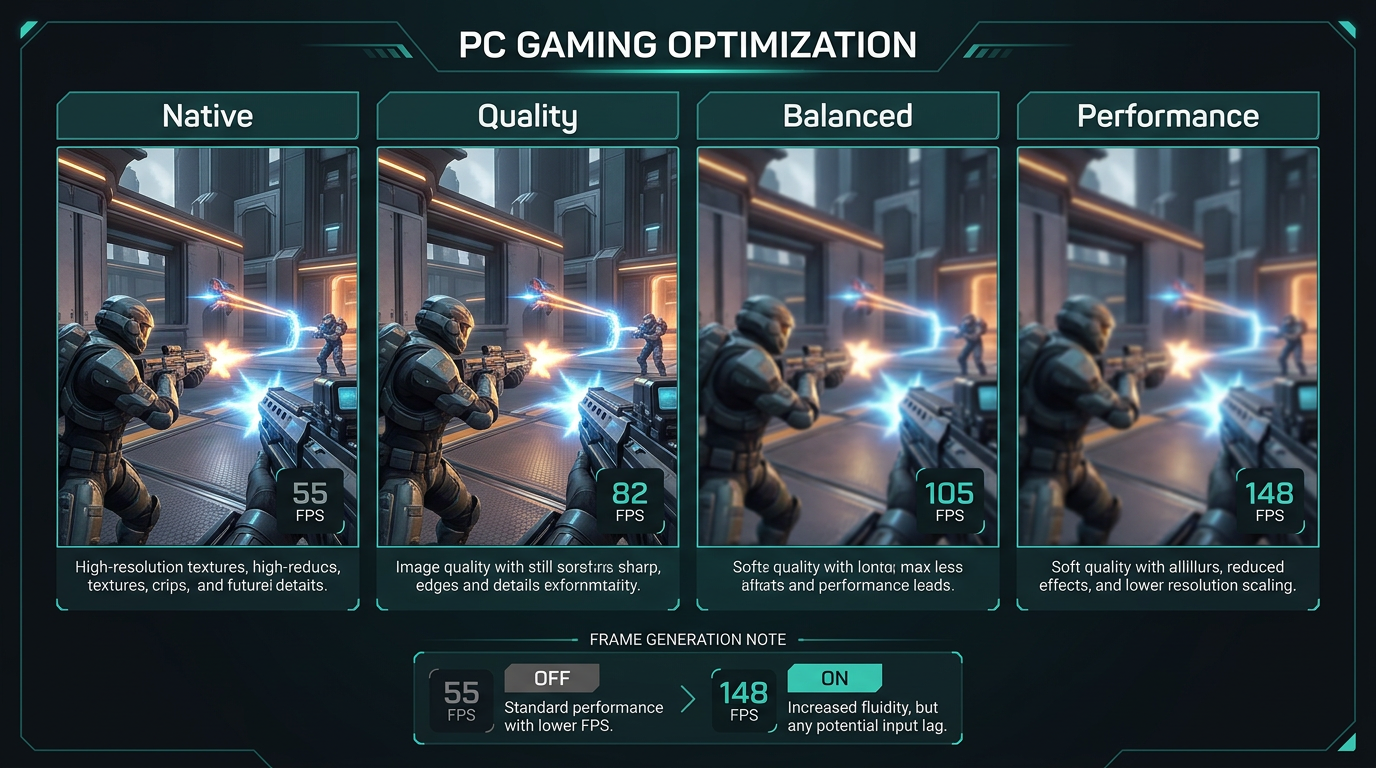
Higher FPS is useful only if the image still stays readable and the game still feels responsive.
Best The Finals upscaling settings
| Option | Competitive recommendation |
|---|---|
| DLSS | Off if native FPS is already stable, otherwise start with Quality |
| FSR | Use Quality first, then Balanced if you still need more FPS |
| Frame Generation | Off for competitive play |
| NVIDIA Reflex | On |
| Resolution Scale | Native first, then upscale only when needed |
If your goal is ranked or tournament-style play, treat clarity and latency as more important than inflated frame numbers.
When DLSS makes sense
DLSS is usually the better starting point for NVIDIA users because it can improve performance without crushing image quality as hard as aggressive scaling modes.
Best DLSS approach
- Stay at native resolution if your FPS is already stable.
- Use DLSS Quality first if you need extra headroom.
- Move to Balanced only if Quality still is not enough.
- Avoid Performance unless your hardware is genuinely struggling.
For competitive play, DLSS Quality is usually the safest option when native is too heavy.
When to use FSR
FSR is the practical fallback for AMD users and for systems where DLSS is not available.
Best FSR approach
- start with Quality
- use Balanced if your FPS target still is not met
- avoid the most aggressive presets unless you accept a softer image
The more aggressive the scaling, the harder it becomes to keep distant targets and small movement cues clean during busy fights.
Should you use frame generation?
For pure competitive play, no. Frame generation can make the game look smoother, but it is usually not the best trade if you care about fast mouse feel and immediate reactions.
Why many competitive players keep it off
- it can add extra latency
- camera movement can feel less direct
- the extra smoothness can hide the fact that your real input response is worse
If you play more casually or you are testing a single-player style benchmark pass, frame generation is easier to justify. For ranked-focused play, leave it off and improve the base frame rate first.
Best settings by goal
If you want the cleanest competitive setup
- native resolution if possible
- DLSS Off or DLSS Quality
- Frame Generation Off
- Reflex On
- lower heavy graphics settings instead of forcing aggressive scaling
If you need more FPS on weaker hardware
- use DLSS Quality or FSR Quality first
- move to Balanced only if you still need more headroom
- keep ray tracing off
- lower shadows, effects, and post processing before crushing image clarity
Upscaling versus lowering normal settings
Players often jump to upscaling too early when the smarter move is simply reducing the most expensive graphics options first.
Lower these before you lean hard on upscaling:
- shadows
- effects
- post processing
- ray tracing
- blur-heavy image effects
That keeps the image cleaner while still improving performance.
Reflex and frame pacing
If you are using an NVIDIA GPU, keep NVIDIA Reflex Low Latency on. It is one of the simplest ways to reduce latency while you optimize the rest of the setup.
Also remember:
- cap FPS slightly below refresh if uncapped play feels unstable
- use Fullscreen
- keep V-Sync off
These changes often matter as much as the upscaler choice itself.
What to test if the image looks too soft
If The Finals becomes blurry or harder to read after turning on DLSS or FSR:
- move from Balanced back to Quality
- sharpen the image only if the game offers a clean sharpening control
- lower shadows or effects instead of pushing a more aggressive upscale mode
- return to native if your system can hold the target FPS
If your performance problem is more about hitching than low FPS, go straight to The Finals Stuttering Fix: Stop FPS Drops and Frame Time Spikes on PC.
Pair this with the main settings guide
Use this article with:
- Best The Finals Settings for FPS and Performance
- The Finals Stuttering Fix: Stop FPS Drops and Frame Time Spikes on PC
- How to Minimize Input Delay for Competitive Gaming
Related guides
- Best The Finals Settings for FPS and Performance
- The Finals Stuttering Fix: Stop FPS Drops and Frame Time Spikes on PC
- How to Minimize Input Delay for Competitive Gaming
- The Ultimate Guide to Timer Resolution for Gaming + Tier1Timer
The best The Finals DLSS, FSR, and frame generation settings depend on what you actually want from the game. For competitive play, keep the image clean, keep Reflex on, and use the lightest upscale mode that still helps instead of chasing fake smoothness with frame generation.