Warzone Black Ops Royale Best Visibility Settings for Competitive Play
On this page
Warzone Black Ops Royale gets much easier to read when you remove the extra effects that hide movement, silhouettes, and distant targets on Avalon. These visibility settings help you spot enemies faster without throwing away more FPS than necessary.
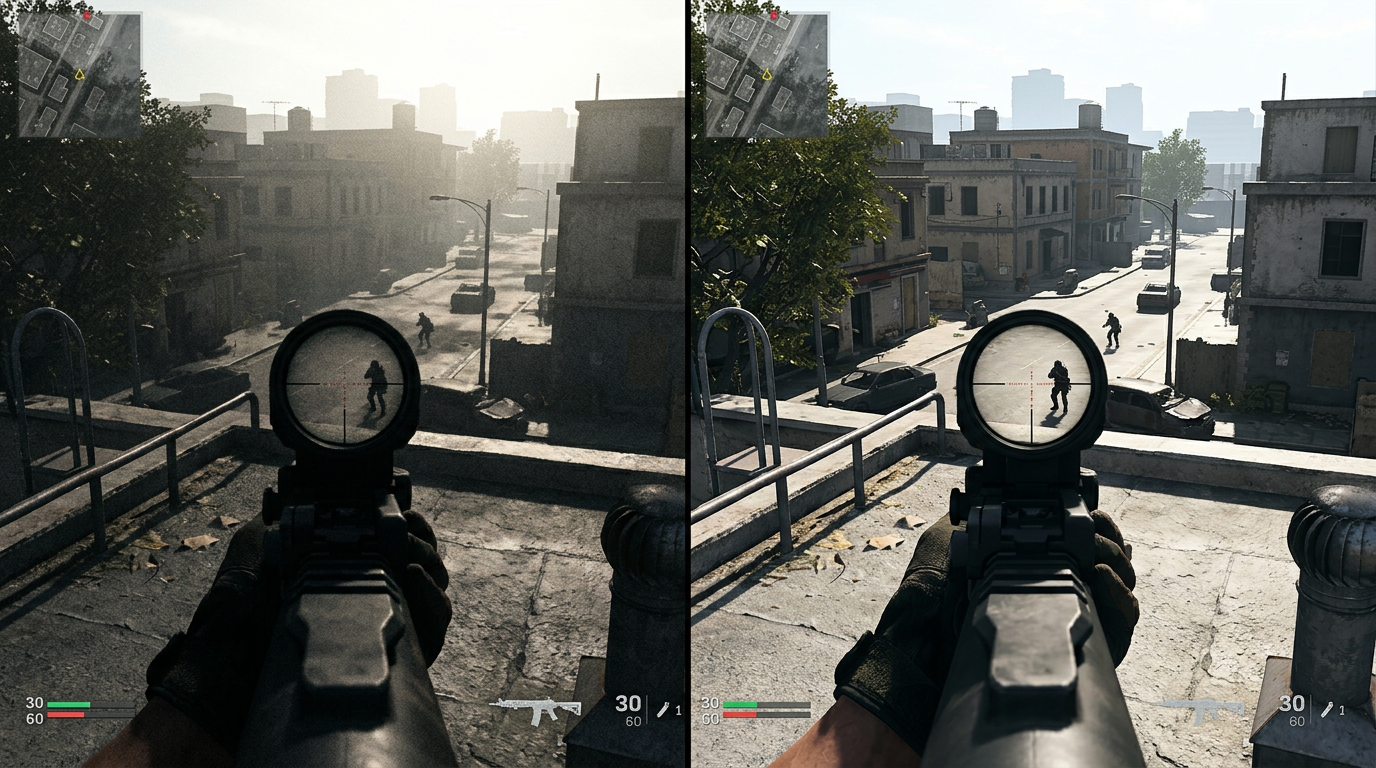
A cleaner image usually helps more than a prettier one when your next fight starts at medium range and ends inside a building.
Best Warzone Black Ops Royale visibility settings
| Setting | Recommended value |
|---|---|
| Field of View | 100 to 110 |
| World Motion Blur | Off |
| Weapon Motion Blur | Off |
| Depth of Field | Off |
| Film Grain | 0.00 |
| Shadow Quality | Low or Normal |
| Screen Space Shadows | Low or Off |
| Ambient Occlusion | Low or Off |
| Volumetric Quality | Low |
| Particles Quality | Low or Normal |
| Upscaling | Off at native if stable, otherwise Quality mode only |
| Sharpness | Mild sharpening only if the image looks too soft |
If a patch renames one of these settings, keep the same goal: remove blur, lower clutter, and preserve target readability.
Why visibility matters so much on Avalon
Avalon mixes open lanes, rooftops, roads, interiors, shoreline space, and water routes. You can lose a fight simply because the screen is too soft or too busy to read quickly.
Black Ops Royale also pushes more ground-loot fights early in the match, which means you often need clean visual reads before your weapon setup is ideal. That makes visibility one of the most important competitive settings categories in the entire mode.
Turn off the settings that blur the image
These are the fastest easy wins:
- World Motion Blur off
- Weapon Motion Blur off
- Depth of Field off
- Film Grain at
0.00
None of these settings help you win fights. They mostly make the image less trustworthy during fast target tracking.
Lower shadows and heavy effects first
Shadows, ambient occlusion, and volumetric effects are usually the first settings that hurt both visibility and performance at the same time.
Best competitive rule
- keep Shadow Quality low or normal
- keep Screen Space Shadows low or off
- keep Ambient Occlusion low or off
- keep Volumetric Quality low
- lower particle-heavy options if explosions and effects start covering targets too much
This keeps enemy silhouettes cleaner while also protecting your FPS in busier parts of the match.
Best FOV for visibility
FOV is a tradeoff. Higher values improve awareness, but they also make targets look smaller.
Good starting range
100if you want slightly larger targets105if you want a balanced competitive setup110if awareness matters most and distant enemies still look readable on your screen
If you want a deeper FOV breakdown, use Best FOV for Warzone Black Ops Royale on PC and Console.
Upscaling can help or hurt visibility
Upscaling is useful only if the image stays readable.
Best rule
- keep it Off if native resolution already gives stable FPS
- use DLSS Quality or FSR Quality first if you need more headroom
- move to Balanced only if your PC genuinely needs it
- avoid aggressive performance modes for competitive play unless your hardware is struggling badly
For a full breakdown, read Warzone Black Ops Royale DLSS, FSR, and Frame Generation Best Settings.
Sharpening and clarity
Too much sharpening creates a crunchy image and can make the screen look worse over time. Too little and everything feels soft.
The best approach is:
- start at native resolution or a light quality upscale
- add only mild sharpening if the game offers it
- lower the heavy clutter settings before pushing more aggressive image processing
Visibility works best with stable performance
Good visibility settings matter less if the game stutters every time the fight gets busy.
That is why this page works best with:
- Best Warzone Black Ops Royale Settings for FPS and Performance
- Warzone Black Ops Royale Stuttering Fix: Stop FPS Drops and Frame Time Spikes on PC
- Warzone Black Ops Royale Best Audio Settings for Footsteps and Directional Sound
Related guides
- Best Warzone Black Ops Royale Settings for FPS and Performance
- Best FOV for Warzone Black Ops Royale on PC and Console
- Warzone Black Ops Royale DLSS, FSR, and Frame Generation Best Settings
- How to Optimize Your Monitor for Gaming
The best Warzone Black Ops Royale visibility settings remove the effects that make enemies harder to read without needlessly tanking performance. Turn the blur-heavy options off, keep shadows and volumetrics under control, and use only as much upscaling as your system truly needs.