Warzone Black Ops Royale Best Audio Settings for Footsteps and Directional Sound
On this page
Warzone Black Ops Royale gets easier to play when your audio mix helps you hear movement, gunfire direction, and nearby threats before the fight fully starts. These settings help you pull useful information out of the mix without turning everything into harsh noise.
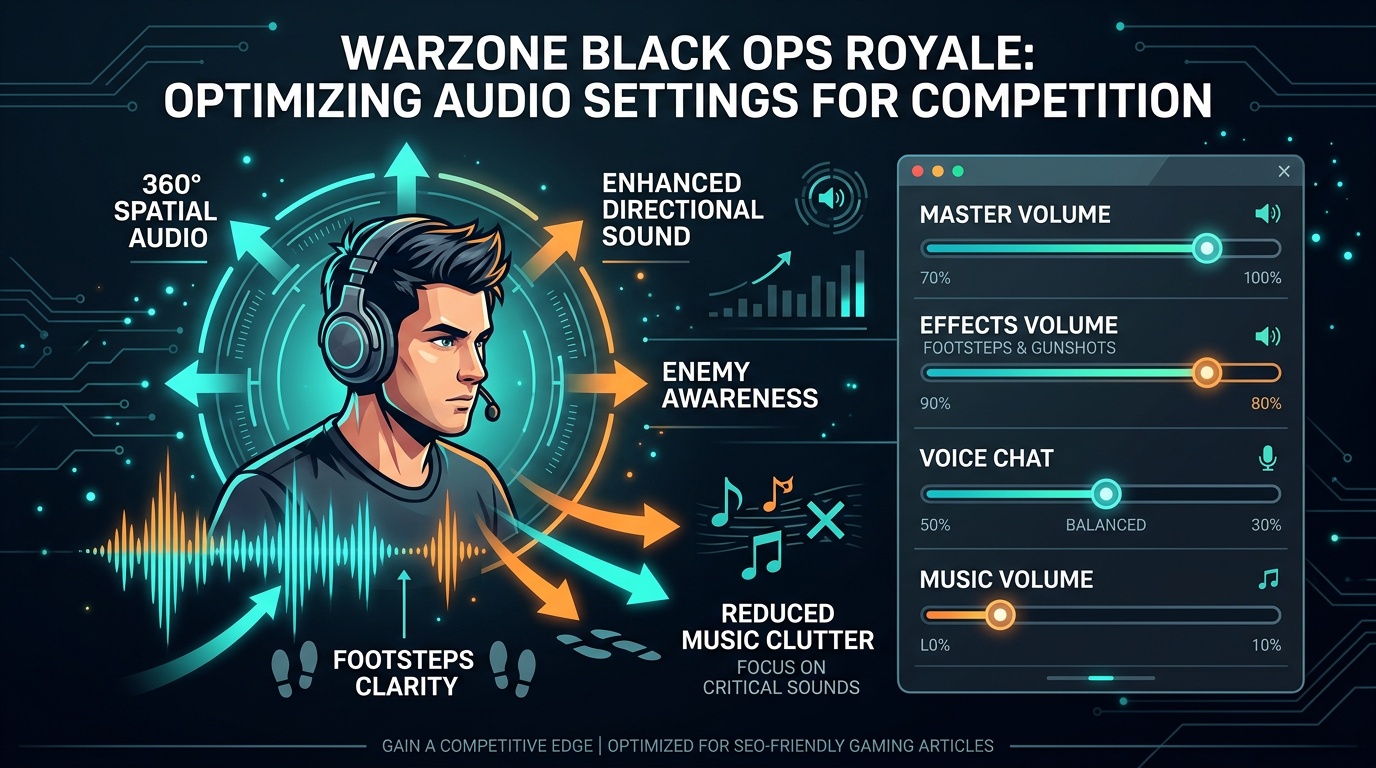
The best competitive audio setup is the one that helps you identify danger faster, not the one that sounds the most cinematic.
Best Warzone Black Ops Royale audio settings
| Setting | Recommended starting point |
|---|---|
| Audio Mix | Headphones or the cleanest headset-focused mix available |
| Master Volume | High enough to keep detail clear without fatigue |
| Effects Volume | High |
| Music Volume | Low or Off |
| Dialogue Volume | Medium |
| Voice Chat Volume | High enough for callouts without masking cues |
| Hit Marker Sound Effects | Personal preference, but keep them clear and not overpowering |
| Mono Audio | Off |
| Spatial / 3D Audio | Use only if it improves directionality on your headset |
| Tinnitus or ringing reduction options | On if you find harsh peak sounds distracting |
If some of the names change after an update, keep the same priorities: footsteps, movement, and combat cues first, everything else second.
Why audio matters even more in Black Ops Royale
Black Ops Royale pushes more risky looting, more unpredictable early fights, and more pressure around Activities, Cradle Breaches, and Redeploy Towers. You will not always have the perfect weapon or position, so hearing the fight early matters even more.
On Avalon, audio also helps you read verticality, interior movement, shoreline pushes, and squad rotations through buildings. A messy mix makes all of that harder.
Prioritize effects over music
Music is good for atmosphere, but it rarely helps you win a gunfight.
Good competitive priorities
- footsteps and close movement
- reloads, armor sounds, and nearby combat
- voice chat
- music
If the game feels noisy, lowering music is one of the fastest and most reliable improvements you can make.
Best audio mix choice
If the game offers several mix presets, use the cleanest headset-focused option first. In most cases, that means a preset built for headphones rather than speakers or home theater setups.
Best rule
- choose the mix that keeps footsteps and direction easiest to identify
- avoid bass-heavy presets if they bury subtle movement
- do not assume louder automatically means clearer
Should you use spatial or 3D audio?
Sometimes spatial processing improves front-back separation. Other times it smears detail and makes direction calls less reliable.
Test it properly
- play a few real matches with it on
- play a few real matches with it off
- compare close movement, vertical cues, and distance judgment
Keep the option that lets you identify direction faster with less guessing.
Voice chat settings
Team callouts matter, but chat should never drown out game cues.
Best approach
- keep voice chat clear but below your main effects mix
- lower overly loud teammates before raising game volume
- use push to talk if open mics create constant noise
- keep noise suppression on if your setup supports it
Windows and headset settings that help
Your system audio chain can either preserve detail or ruin it.
Recommended checks
- Disable sound enhancements you do not need.
- Avoid stacking multiple surround or virtual audio tools at once.
- Use the correct sample rate for your headset in Windows.
- Keep audio drivers and headset firmware current if your device uses them.
- Use wired headphones if your wireless setup feels delayed or inconsistent.
If your whole setup feels slow rather than just hard to hear, pair this with How to Minimize Input Delay for Competitive Gaming.
Audio settings to avoid
These often make Black Ops Royale harder to read competitively:
- music too high
- bass-heavy mixes that bury footsteps
- voice chat loud enough to cover movement
- over-processed spatial audio that blurs direction
- multiple Windows audio enhancements stacked together
Build a cleaner Black Ops Royale setup
Audio works best when the rest of your game is also stable and readable. These are the next pages to use:
- Best Warzone Black Ops Royale Settings for FPS and Performance
- Warzone Black Ops Royale Best Visibility Settings for Competitive Play
- Warzone Black Ops Royale Stuttering Fix: Stop FPS Drops and Frame Time Spikes on PC
Related guides
- Best Warzone Black Ops Royale Settings for FPS and Performance
- Best FOV for Warzone Black Ops Royale on PC and Console
- How to Optimize Your Monitor for Gaming
- How to Minimize Input Delay for Competitive Gaming
The best Warzone Black Ops Royale audio settings make footsteps, movement, and directional combat cues easier to separate from the rest of the mix. Keep music low, test spatial processing carefully, and do not let voice chat or extra audio effects bury the information you actually need.