The Finals Best Visibility Settings for Competitive Play
On this page
The Finals gets much easier to play when you strip away the extra visual clutter that hides movement and silhouettes during chaotic fights. These visibility settings help you spot enemies faster without giving up more FPS than necessary.
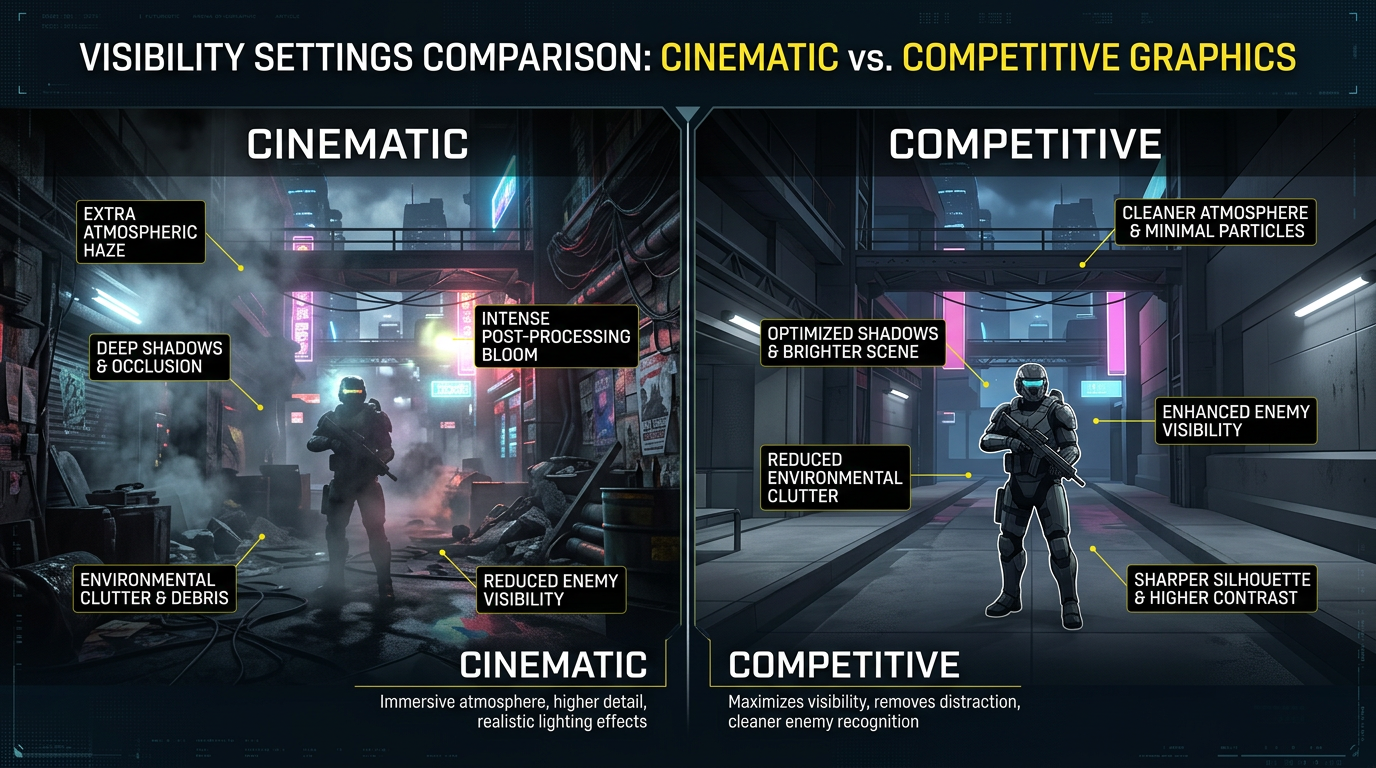
A cleaner screen usually helps more than a prettier one once the match turns into pure chaos.
Best The Finals visibility settings
| Setting | Recommended value |
|---|---|
| Field of View | 95 to 100 |
| Motion Blur | Off |
| Lens Distortion | Off |
| Depth of Field | Off if available |
| Film Grain | Off if available |
| Shadow Quality | Low |
| Effects Quality | Low |
| Post Processing | Low |
| Ray Tracing | Off |
| Upscaling | Off or Quality if needed |
If one of these settings is named differently after an update, keep the same logic: remove blur, reduce heavy effects, and keep the image stable enough to track targets cleanly.
Why visibility matters so much in The Finals
The Finals can throw smoke, debris, particles, destruction, and lighting changes at you all at once. Even if your FPS looks decent, fights become harder when the screen is full of unnecessary haze and effect clutter.
That is why competitive visibility is not just about prettier graphics settings. It is about getting faster reads on movement, silhouettes, and threat direction.
Turn off the settings that blur the image
These are the easiest wins:
- Motion Blur off
- Lens Distortion off
- Depth of Field off if the option is available
- Film Grain off if the option is available
These effects do not help your aim, and they often make the image less reliable when you are trying to track quick movement.
Lower shadows and effects first
Shadows, effects, and post processing are usually the settings most likely to hurt both performance and readability.
Best competitive rule
- keep Shadows low
- keep Effects low
- keep Post Processing low
- keep Ray Tracing off
This reduces clutter while also protecting your FPS in heavy fights.
Best FOV for awareness
FOV is a tradeoff between peripheral vision and target size. In The Finals, 95 to 100 is a strong competitive range because it gives you more awareness without making targets feel too tiny for most players.
Use:
- closer to
95if you prefer slightly larger targets - closer to
100if awareness and fast reads matter more to you
Go higher only if it still feels natural on your monitor size and viewing distance.
Upscaling and clarity
Upscaling can help performance, but it can also soften the image if you push it too far.
Best rule
- keep upscaling off if you already hold stable FPS at native
- use Quality first if you need more headroom
- avoid aggressive performance modes unless your hardware is struggling
For a full breakdown, use The Finals DLSS, FSR, and Frame Generation Best Settings.
Visibility works best with stable performance
If your frame rate is unstable, even good visibility settings will not feel as useful because the image still becomes harder to read during spikes.
That is why this page works best with:
- Best The Finals Settings for FPS and Performance
- The Finals Stuttering Fix: Stop FPS Drops and Frame Time Spikes on PC
- The Finals Best Audio Settings for Footsteps and Directional Sound
Related guides
- Best The Finals Settings for FPS and Performance
- The Finals Stuttering Fix: Stop FPS Drops and Frame Time Spikes on PC
- The Finals DLSS, FSR, and Frame Generation Best Settings
- How to Optimize Your Monitor for Gaming
The best The Finals visibility settings remove the effects that make fights harder to read without needlessly sacrificing FPS. Turn off the blur-heavy options, keep shadows and effects low, and use only as much upscaling as your system actually needs.