The Finals Best Audio Settings for Footsteps and Directional Sound
On this page
The Finals gets much easier to read when your audio mix prioritizes footsteps, movement, and combat cues instead of drowning them in music and noise. These settings help you hear useful information faster without turning the whole game into a messy wall of sound.
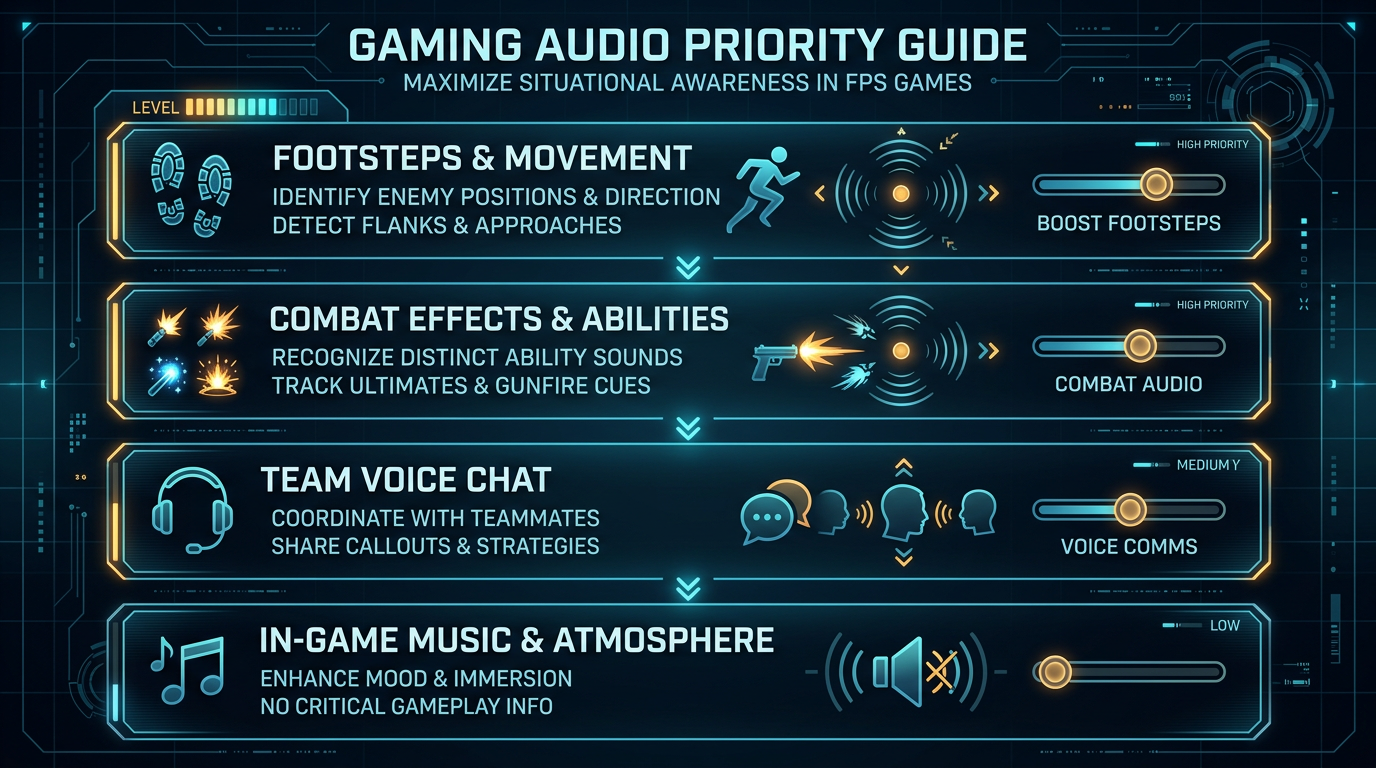
The best competitive audio setup is the one that makes important sounds easier to separate, not the one that sounds the most cinematic.
Best The Finals audio settings
| Setting | Recommended starting point |
|---|---|
| Master Volume | 75 to 80 |
| Effects Volume | 100 |
| Dialogue Volume | 60 to 70 |
| Music Volume | Low or Off |
| Voice Chat Volume | High enough for callouts without masking cues |
| Dynamic Range | Medium |
| 3D Audio / Spatial Audio | On if it improves directionality on your headset |
| Output Device | Stereo headset or your main gaming headphones |
If the exact names differ slightly after an update, keep the same priorities: raise the useful cues and lower everything that masks them.
Prioritize effects over music
Music can be fun, but it usually does not help you win fights. In a competitive mix, you want the sounds that carry gameplay information to sit above the sounds that only add atmosphere.
Good competitive priorities
- footsteps and nearby movement
- combat effects and abilities
- voice chat
- music
Lowering music is one of the fastest audio improvements you can make if fights feel crowded.
Best dynamic range setting
Dynamic range changes how wide the gap is between quiet and loud sounds. In most competitive shooters, Medium is the safest starting point because it keeps important sounds clear without huge volume swings.
Use:
- Medium if you want a balanced competitive mix
- Low if the game still feels too explosive and uneven
- avoid the widest cinematic setting unless you only care about immersion
Should you use 3D audio?
That depends on your headset and how your brain handles processed surround effects. Sometimes spatial audio improves front-back and vertical cues. Other times it smears directionality and makes the mix harder to trust.
Test it properly
- play a few real matches with it on
- play a few real matches with it off
- compare close movement, distance judgment, and direction calls
Keep the setting that lets you identify direction faster with less guessing.
Voice chat and background noise
Good team comms help, but they should not cover your game audio.
Best approach
- keep voice chat clear but not overpowering
- use push to talk if open mic causes constant noise
- enable noise suppression if your setup supports it
- do not run your chat volume so high that footsteps vanish underneath it
Windows and headset settings that help
Your system audio chain can either preserve clarity or make it worse.
Recommended checks
- Disable sound enhancements you do not need.
- Avoid stacking multiple virtual surround tools at once.
- Use the correct sample rate for your headset in Windows.
- Keep headset firmware and audio drivers current if your device uses them.
- Use wired headphones if your wireless setup feels delayed or inconsistent.
If your whole system feels sluggish rather than just hard to hear, pair this with How to Minimize Input Delay for Competitive Gaming.
Audio settings to avoid
These often make The Finals harder to read competitively:
- music too high
- very wide dynamic range
- over-processed surround sound that blurs direction
- loud voice chat covering combat cues
- bass-heavy EQ profiles that bury subtle movement
Build a cleaner Finals setup
Audio works better when the rest of the game is also stable and easy to read. These are the next pages to use:
- Best The Finals Settings for FPS and Performance
- The Finals Stuttering Fix: Stop FPS Drops and Frame Time Spikes on PC
- The Finals Best Visibility Settings for Competitive Play
Related guides
- Best The Finals Settings for FPS and Performance
- The Finals Best Visibility Settings for Competitive Play
- How to Optimize Your Monitor for Gaming
- How to Minimize Input Delay for Competitive Gaming
The best The Finals audio settings make movement, footsteps, and combat cues easier to separate from the rest of the mix. Keep music low, test spatial audio carefully, and do not be afraid to disable extra audio processing if it makes direction harder to judge.