Arc Raiders Stuttering Fix: Stop FPS Drops and Frame Time Spikes on PC
On this page
Arc Raiders can feel fine one moment and terrible the next if shader compilation, storage, VRAM pressure, or background apps start wrecking your frame times. This guide walks through the fastest fixes to stop stutter, stabilize 1% lows, and make the game feel smoother in real fights.
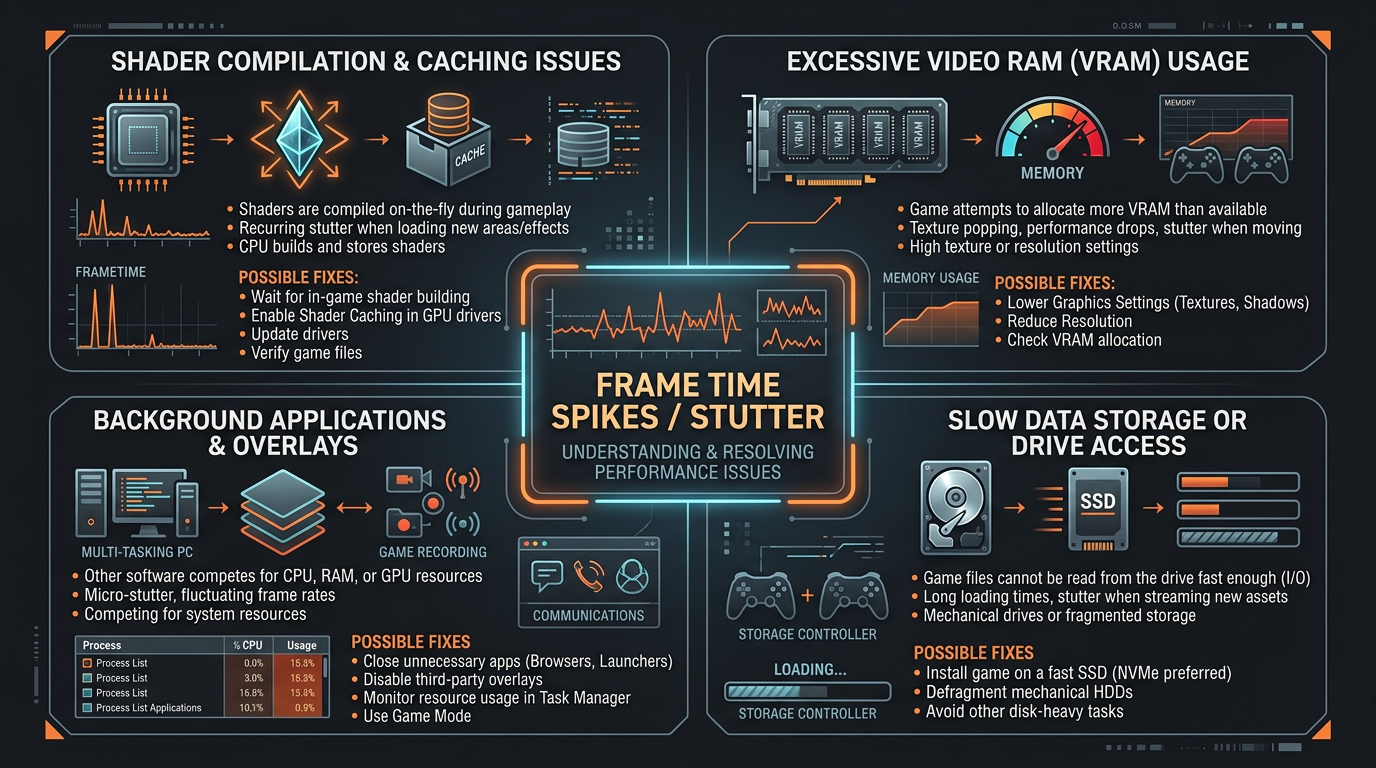
Use this as a quick checklist before you start changing random settings.
What Arc Raiders stutter usually looks like
If your average FPS looks decent but the game still feels bad, you are usually dealing with frame time spikes rather than low FPS alone. Common symptoms include:
- brief freezes when entering a new area
- hitching when explosions or effects appear
- sudden drops while turning quickly
- inconsistent mouse feel even at high FPS
- worse performance after a patch or driver update
That is why a stutter fix article needs a different approach than a general Arc Raiders optimization guide.
Change these in-game settings first
Start with the settings most likely to smooth frame delivery without crushing visibility.
| Setting | Recommended value |
|---|---|
| Display Mode | Fullscreen |
| V-Sync | Off |
| Frame Rate Limit | Match monitor refresh or cap slightly below it |
| Shadows | Low |
| Effects | Low |
| Post Processing | Low |
| Motion Blur | Off |
| Film Grain | Off |
| Chromatic Aberration | Off |
| Texture Quality | Medium if VRAM is limited |
| Upscaling | Quality or Balanced if native is unstable |
If your GPU has 8 GB VRAM or less, do not leave textures too high just because the average FPS looks fine. VRAM pressure often shows up as ugly hitching, not just lower FPS.
Let shader compilation finish
A lot of early-match hitching is shader related. If Arc Raiders is compiling shaders after an update, do not start troubleshooting until that process has actually finished.
What to do
- Launch the game and let the shader build complete.
- Restart the game once the initial compile finishes.
- Play one full match before judging performance.
- If stutter gets worse after every patch, update GPU drivers and test again.
If shader-related stutter keeps returning, clear old shader cache data and let the game rebuild it cleanly.
Update or clean-install your GPU driver
Driver problems are one of the most common causes of new stutter after the game, Windows, or your GPU software changes.
Use this order
- Install the latest stable driver for your GPU.
- If stutter started immediately after a driver update, try the previous stable version instead.
- Reset driver settings to default before testing custom tweaks.
- Turn off extra overlays and recording features while troubleshooting.
Keep this simple at first. A clean baseline beats stacking five different “FPS boost” tweaks at once.
Check VRAM, RAM, and background apps
Arc Raiders can become choppy when your system is running out of headroom even if your CPU and GPU usage numbers do not look extreme.
Watch for these signs
- GPU memory usage is near full
- system RAM usage is very high before the match even starts
- Discord, browser tabs, capture tools, and overlays are running together
- frame drops get worse the longer you play
Fast fixes
- Close browsers, launchers, RGB tools, and hardware monitors you do not need.
- Disable Steam and Discord overlays.
- Lower texture quality one step.
- Reboot the PC before long play sessions if memory usage has gotten messy.
Install Arc Raiders on an SSD
If the game is on a slow SATA SSD or hard drive, traversal hitching can get noticeably worse. Arc Raiders streams a lot of data, so storage speed matters for smoothness.
For best results:
- use an NVMe SSD if possible
- keep at least 15 to 20 percent free space on the drive
- avoid copying large files or downloading games while playing
This also pairs well with the advice in Arc Raiders System Requirements: Can Your PC Run It?.
Windows fixes that are actually worth trying
These are the Windows-side changes most likely to help without turning the guide into generic tweak spam.
Recommended checks
- Enable Game Mode.
- Disable unnecessary startup apps.
- Set your Windows power plan to High Performance or the best equivalent available on your system.
- Make sure Arc Raiders is using the correct discrete GPU on laptops.
- Turn off third-party overlays while testing.
If your goal is smoother input and better frame consistency, also read The Ultimate Guide to Timer Resolution for Gaming (and download Tier1Timer to apply the change instantly) and How to Minimize Input Delay for Competitive Gaming.
When to lower your frame cap
Running uncapped is not always the smoothest option. If your FPS swings wildly in heavy fights, a stable cap can reduce frame time spikes.
Good starting points
141 FPSfor a 144 Hz monitor237 FPSfor a 240 Hz monitor117 FPSfor a 120 Hz monitor
Test capped and uncapped play. Pick the one that feels steadier in actual raids, not the one that produces the biggest benchmark number.
What to do if stutter started after an update
When performance suddenly drops after a patch, do not assume your whole PC is the problem.
- Verify game files.
- Rebuild shader cache.
- Reset any aggressive driver overrides.
- Lower texture and effects settings one step.
- Wait for hotfixes if multiple players are reporting the same issue.
That is also a good time to review your Arc Raiders DLSS, FSR, and Frame Generation Best Settings because upscaling behavior can change after updates.
Related guides
- Arc Raiders Optimization Guide: Best Settings for Maximum FPS and Performance
- Arc Raiders DLSS, FSR, and Frame Generation Best Settings
- How to Minimize Input Delay for Competitive Gaming
- The Ultimate Guide to Timer Resolution for Gaming + Tier1Timer
If Arc Raiders is stuttering, fix shader behavior, VRAM pressure, and background conflicts before you start chasing obscure tweaks. Most players get the biggest improvement from lower effect-heavy settings, cleaner drivers, and a more stable frame cap.