Arc Raiders Best Audio Settings for Footsteps and Directional Sound
On this page
Arc Raiders audio matters because good directional sound often gives you the extra second you need to react before a fight starts. These settings help you hear important cues more clearly while cutting the extra noise that makes busy fights harder to read.
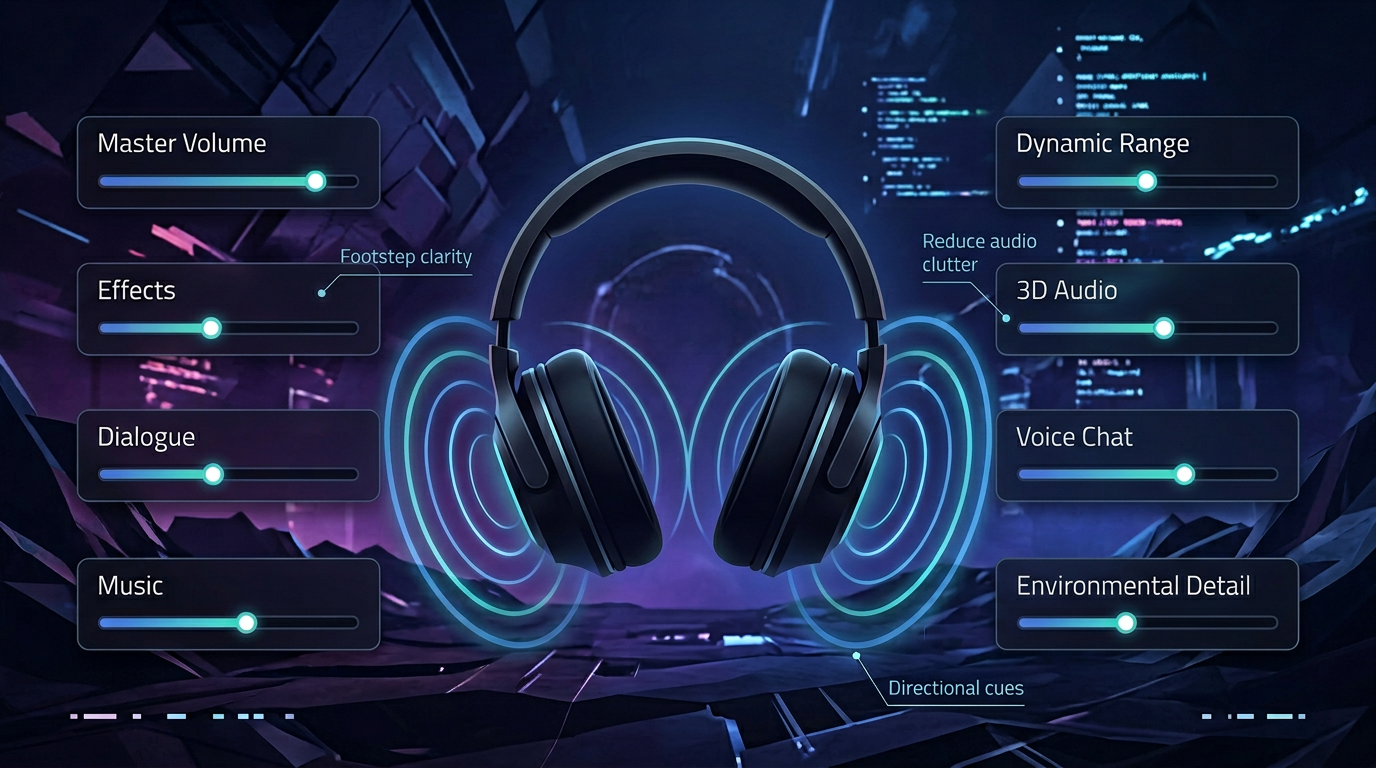
The goal is not cinematic sound. The goal is hearing useful information faster.
Best Arc Raiders audio settings
| Setting | Recommended starting point |
|---|---|
| Master Volume | High enough to keep detail clear without fatigue |
| Effects Volume | High |
| Dialogue Volume | Medium |
| Music Volume | Low or Off |
| Voice Chat | Personal preference |
| Dynamic Range | Low or Medium for competitive clarity |
| 3D Audio / Spatial Audio | On if it improves directional cues on your headset |
If the game uses slightly different names, keep the same logic: raise important combat cues and reduce anything that masks them.
Prioritize effects over music
Music can make the game feel better, but it usually does not help you win fights. In a competitive audio mix, you want the important sounds to sit on top of the rest.
Good competitive priorities
- footsteps and movement
- reloads, gadgets, and nearby combat
- voice chat
- music
Lowering music is one of the fastest improvements you can make if fights sound crowded.
Best dynamic range setting
Dynamic range changes how wide the gap is between quiet and loud sounds. In many competitive games, a lower or medium dynamic range makes key details easier to hear without massive volume swings.
Use:
- Low if you want the clearest and most compressed competitive mix
- Medium if low sounds too flat
- avoid the widest cinematic preset unless you only care about immersion
Should you use spatial or 3D audio?
This depends on your headset and how the game handles directional audio. Sometimes spatial processing improves front-back separation. Other times it smears detail and makes the mix harder to read.
Test it properly
- play one match with it on
- play one match with it off
- compare close movement, vertical cues, and distance judgment
Keep the option that makes enemy direction easier to call out immediately.
Windows audio settings that help
Your Windows audio setup can either preserve detail or add more confusion.
Recommended checks
- Disable sound enhancements you do not need.
- Use the correct sample rate for your headset in Windows.
- Avoid running multiple virtual audio tools at once.
- Keep headset firmware and audio drivers current if your device uses them.
If your whole system feels delayed or inconsistent, combine this with How to Minimize Input Delay for Competitive Gaming.
Headset tips for better directional sound
Even the best in-game settings will not fix poor headphone positioning or an overly bass-heavy sound profile.
For cleaner cues:
- use a neutral or “competitive” EQ if your headset software offers one
- reduce heavy bass boosts that can bury subtle details
- keep overall volume below the level where everything starts blending together
Audio settings to avoid
These can make Arc Raiders harder to read competitively:
- music too high
- maximum dynamic range
- loud chat volume covering game cues
- aggressive bass boost or surround processing that blurs directionality
Pair audio with visibility and performance
Good audio helps more when the game is also visually clear and smooth. If fights still feel hard to read, these guides are the next step:
- Arc Raiders Best Visibility Settings for Competitive Play
- Arc Raiders Stuttering Fix: Stop FPS Drops and Frame Time Spikes on PC
- Arc Raiders Optimization Guide: Best Settings for Maximum FPS and Performance
Related guides
- Arc Raiders Best Controller Settings for Aim, Deadzone, and Responsiveness
- Arc Raiders Best Visibility Settings for Competitive Play
- How to Optimize Your Monitor for Gaming
- How to Minimize Input Delay for Competitive Gaming
The best Arc Raiders audio settings make footsteps, movement, and combat cues easier to separate from the rest of the mix. Keep music low, test dynamic range carefully, and do not be afraid to disable extra audio processing if it makes direction harder to judge.